
Learn how to add shifts for your employees and how to set rosters in Payroller.
Learn how to add shifts and set rosters for your employees with our simple guide below.
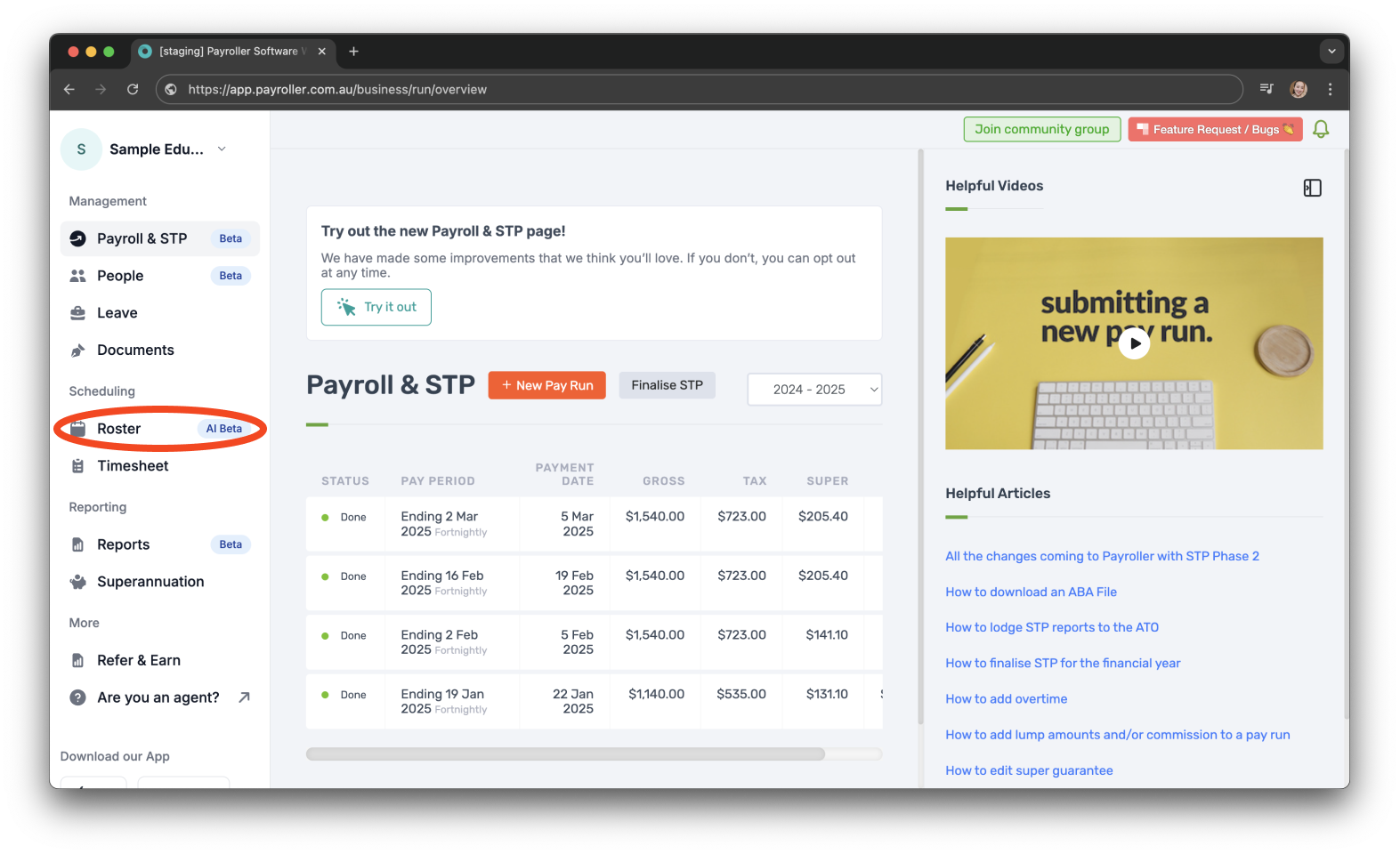
Step 1: Click on ‘Roster’.
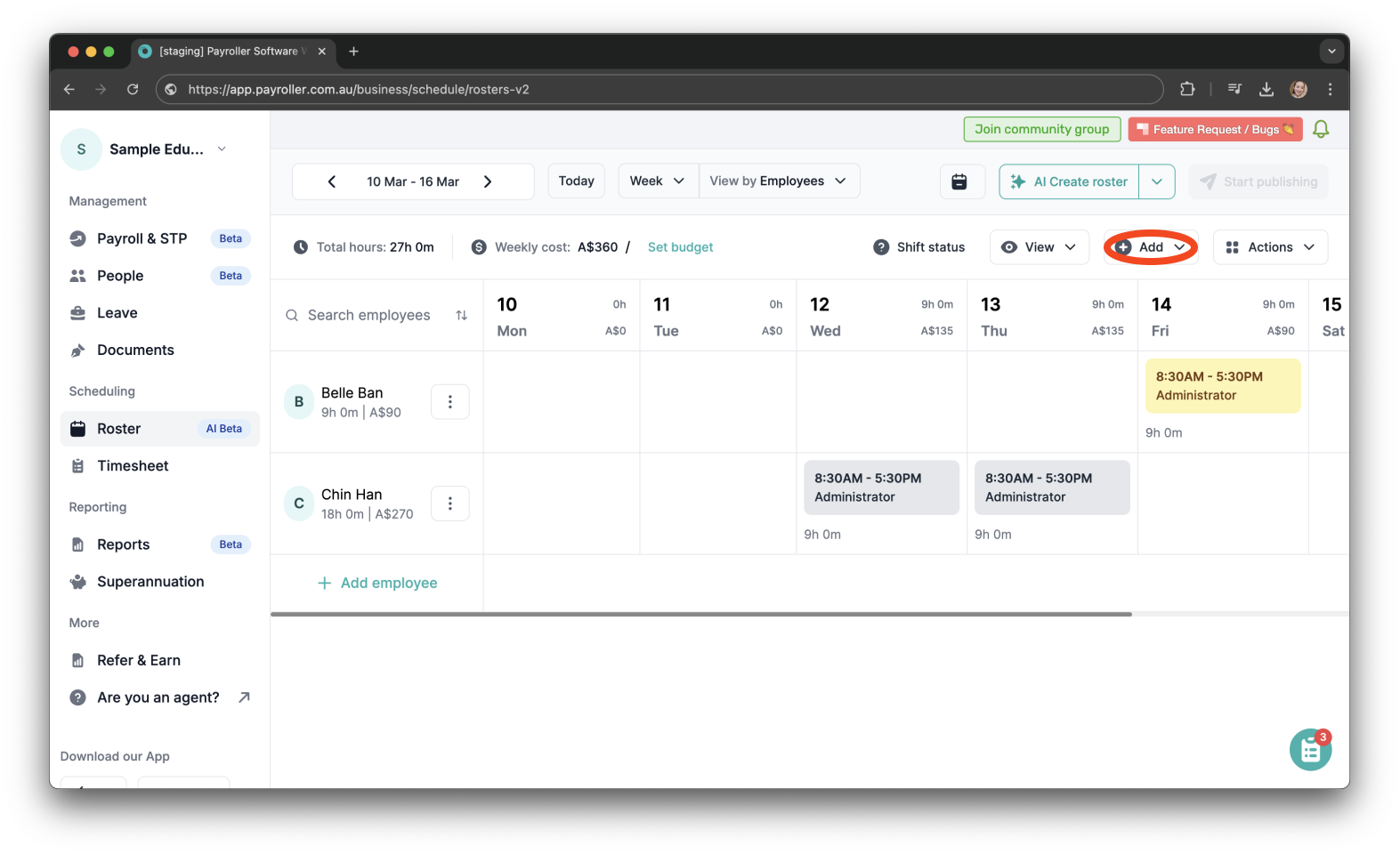
Step 2: Click ‘Add’.
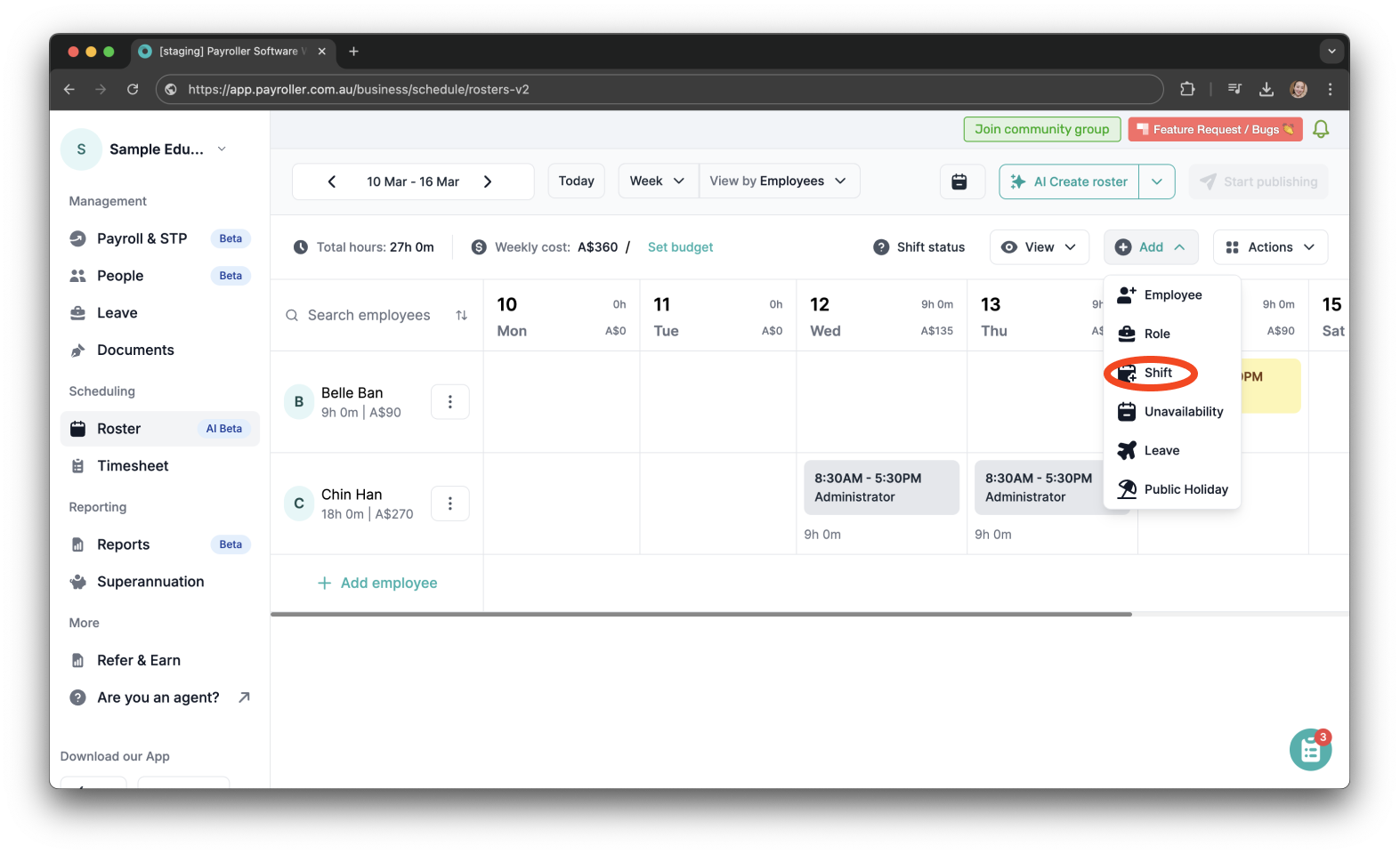
Step 3: Select ‘Shift’.
If your employee is already rostered, you can directly click on the roster to add shifts.
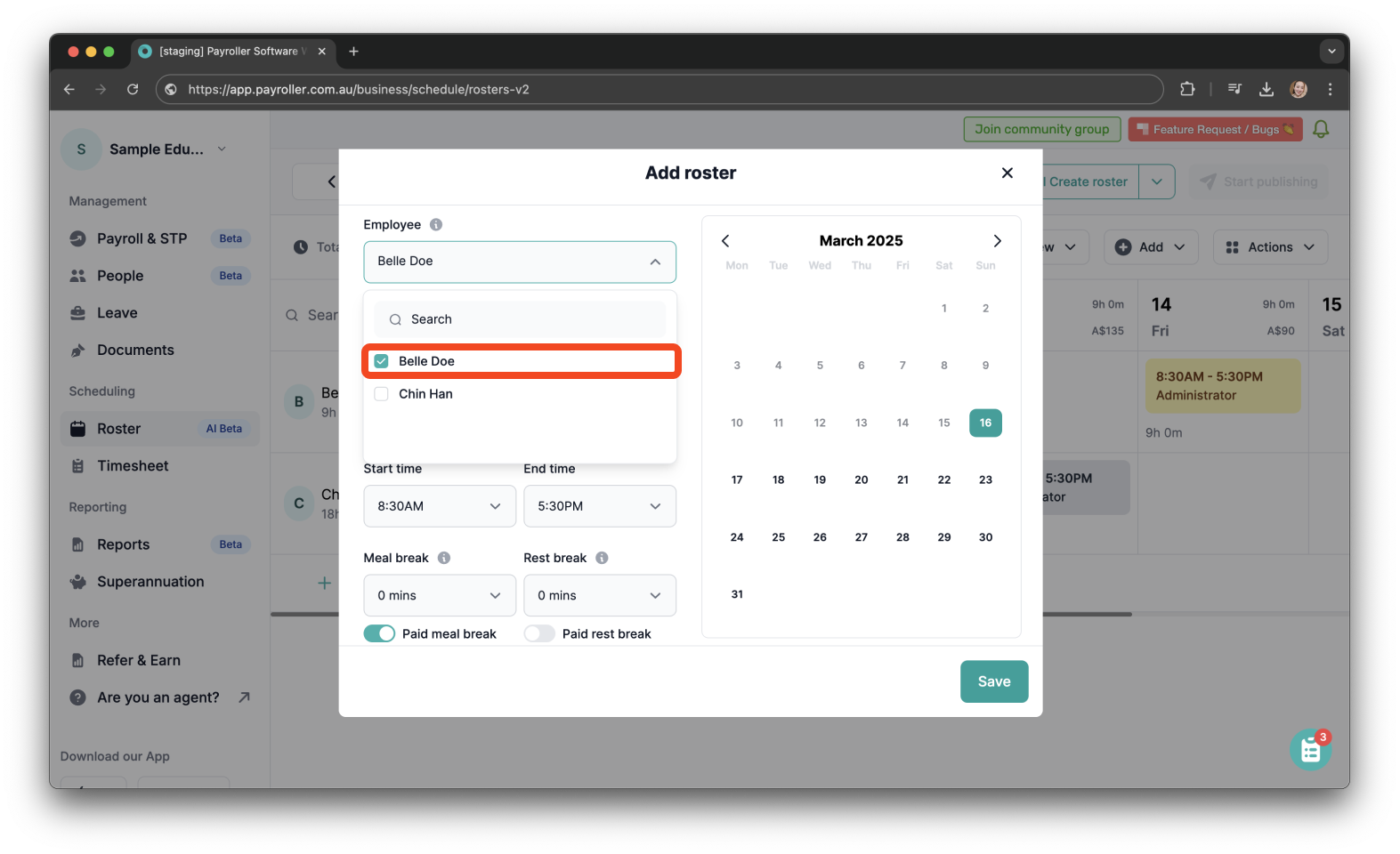
Step 4: Select the employee(s) from the ‘Employee’ dropdown menu.
Step 5: Choose the employee’s ‘Role’.
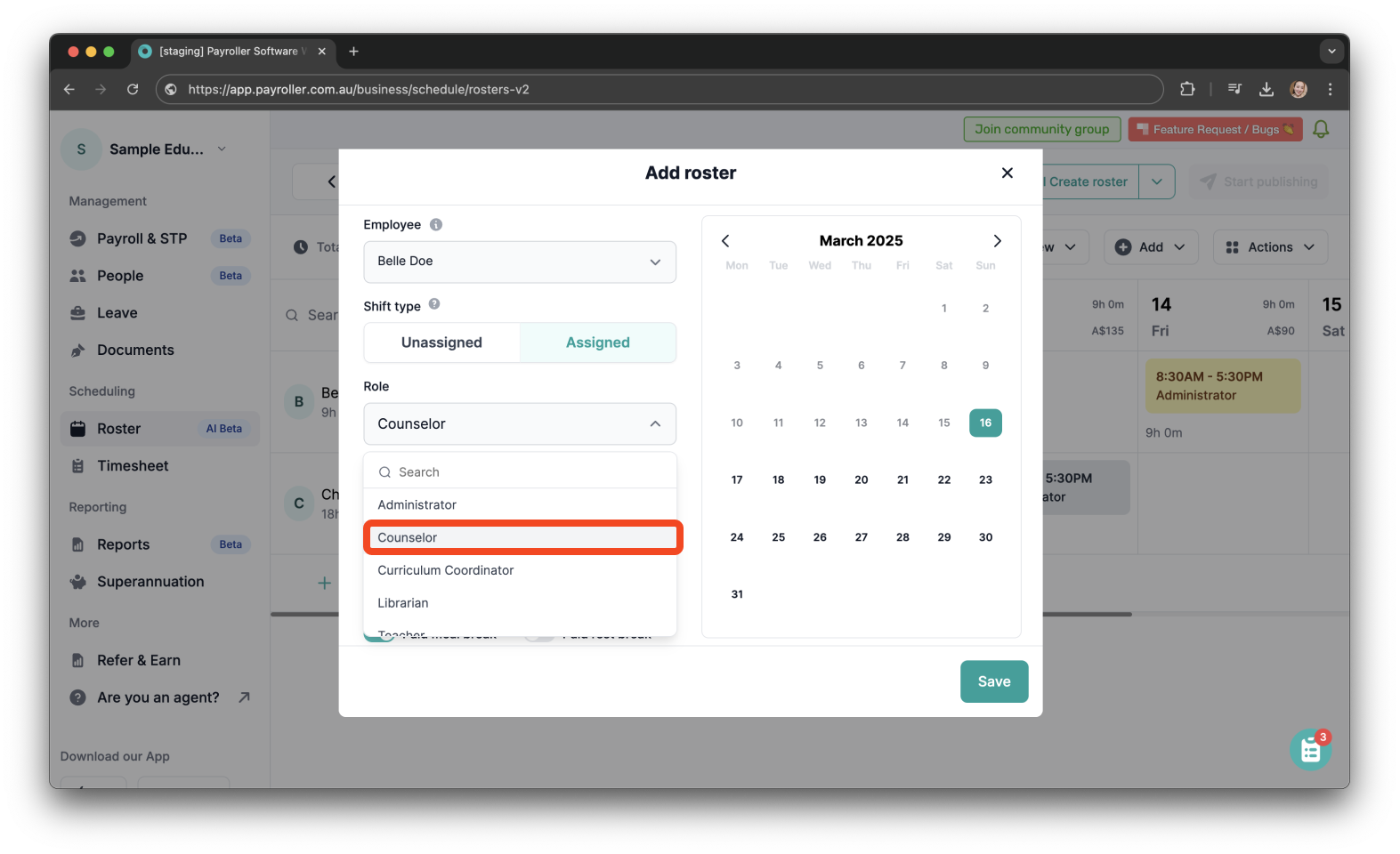
Step 6: Enter the ‘Start’ and ‘End’ times.
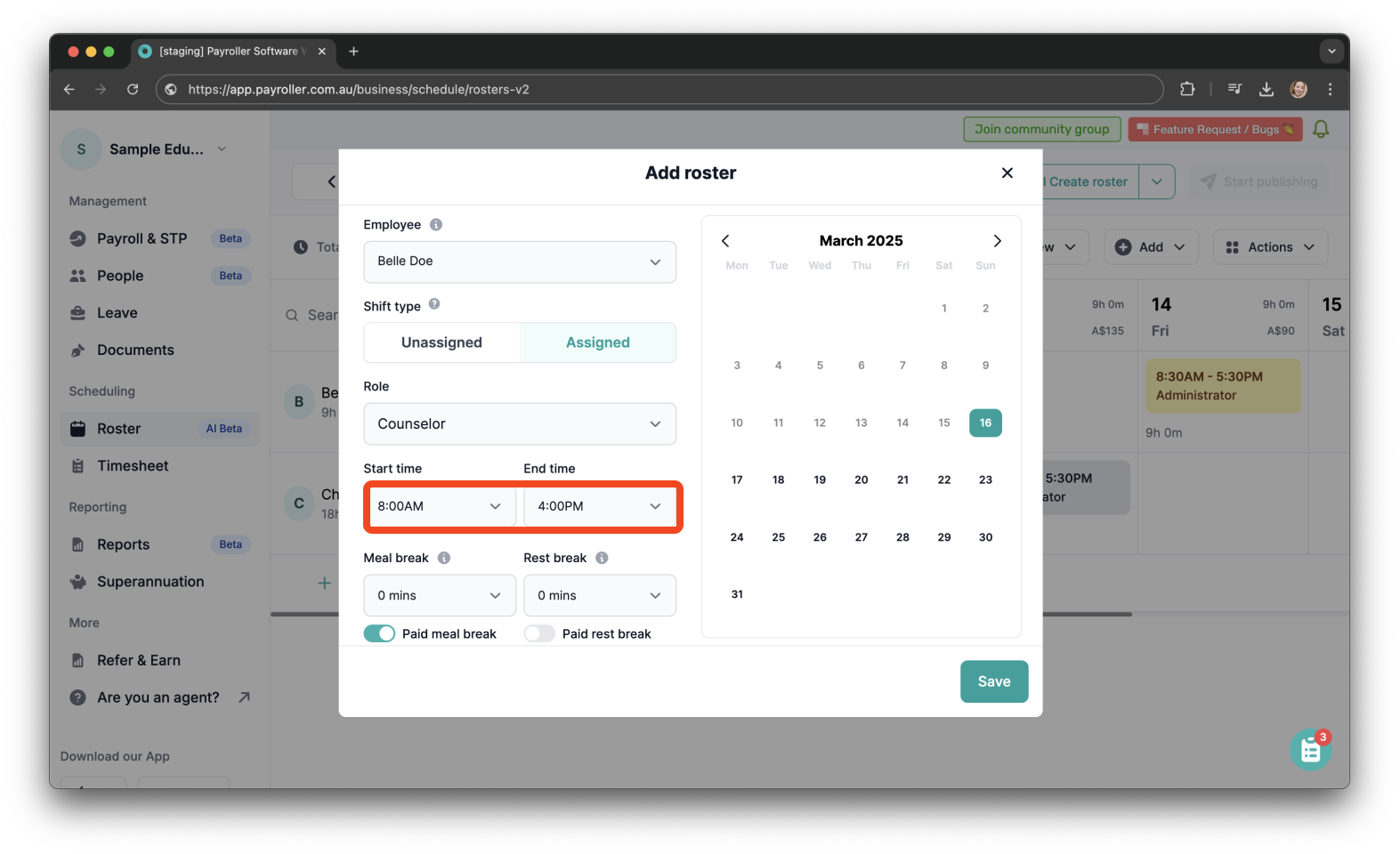
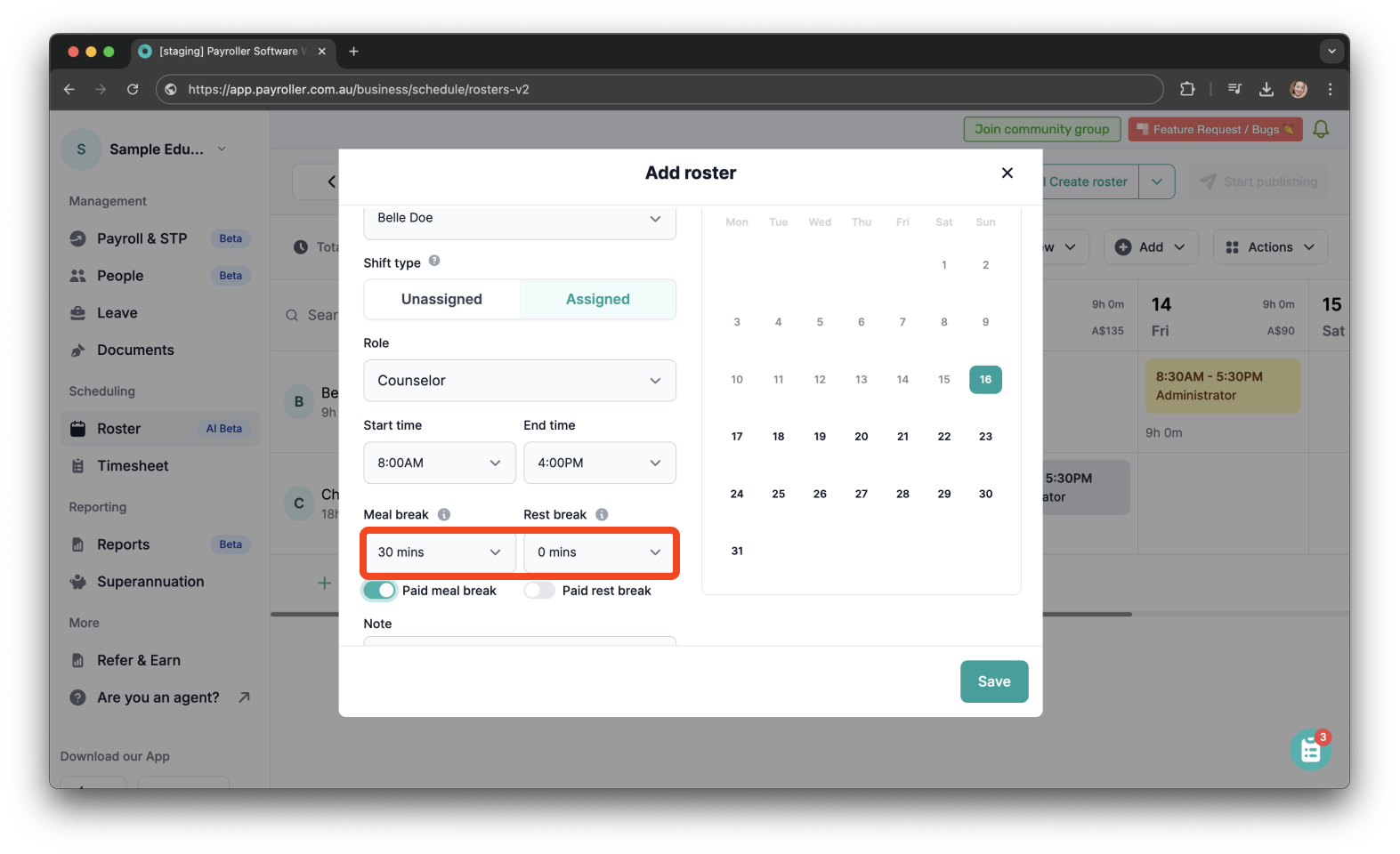
Step 7: Add any ‘Meal’ and ‘Rest’ breaks.
You can also choose whether the breaks are paid, as shown below.
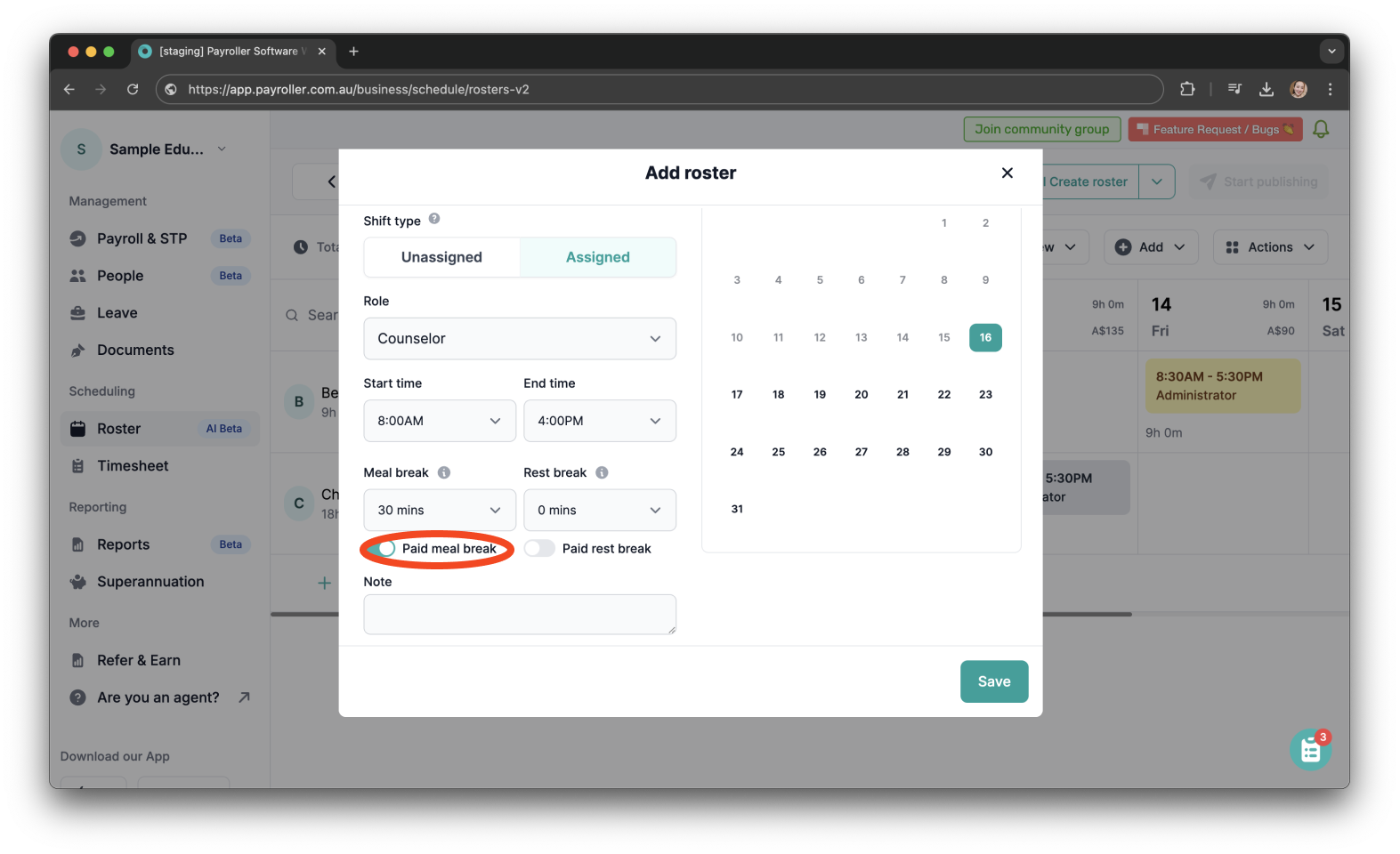
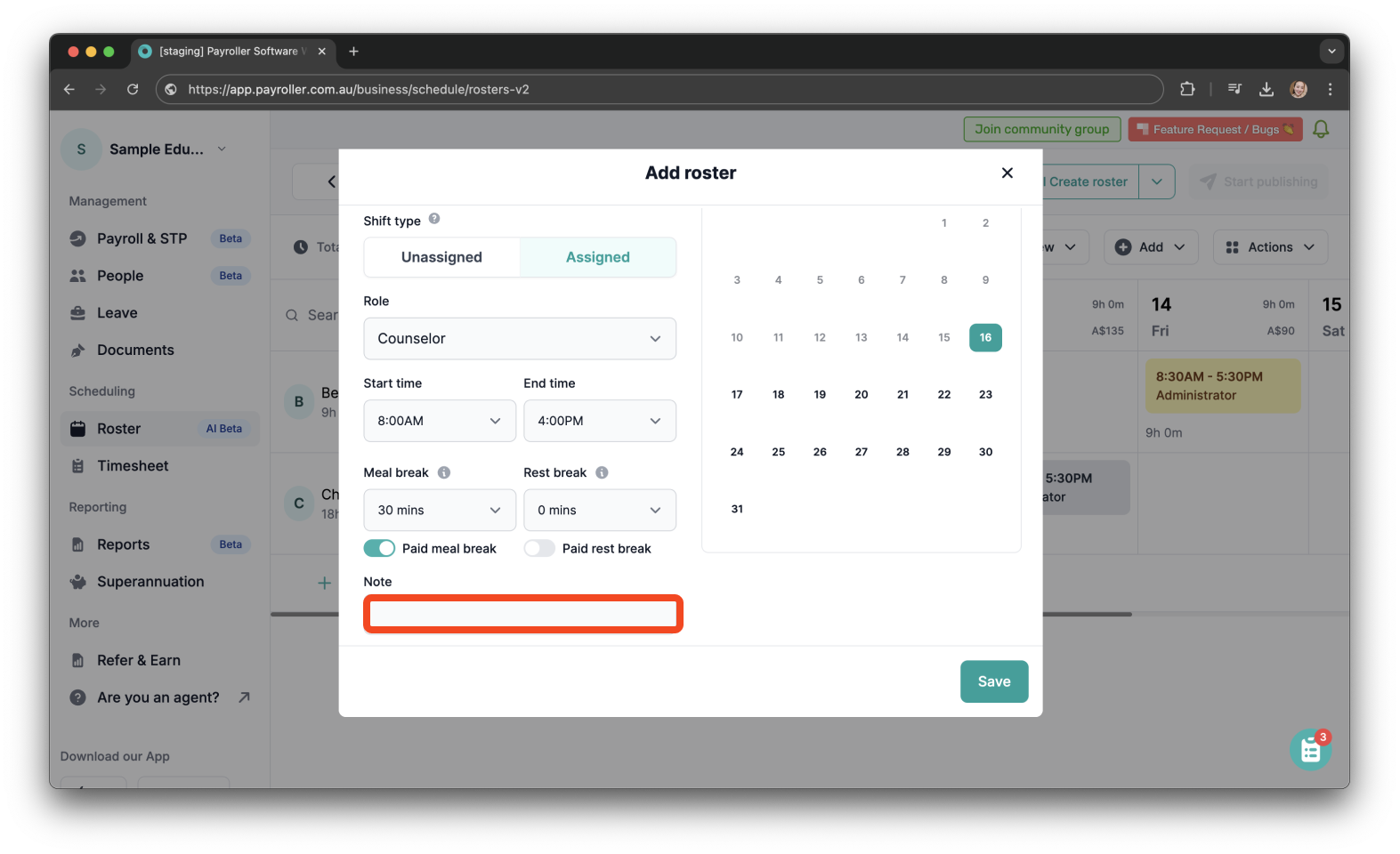
Step 8: Add ‘Notes’ if needed.
Keep in mind that any notes entered here will not be sent to your employees.
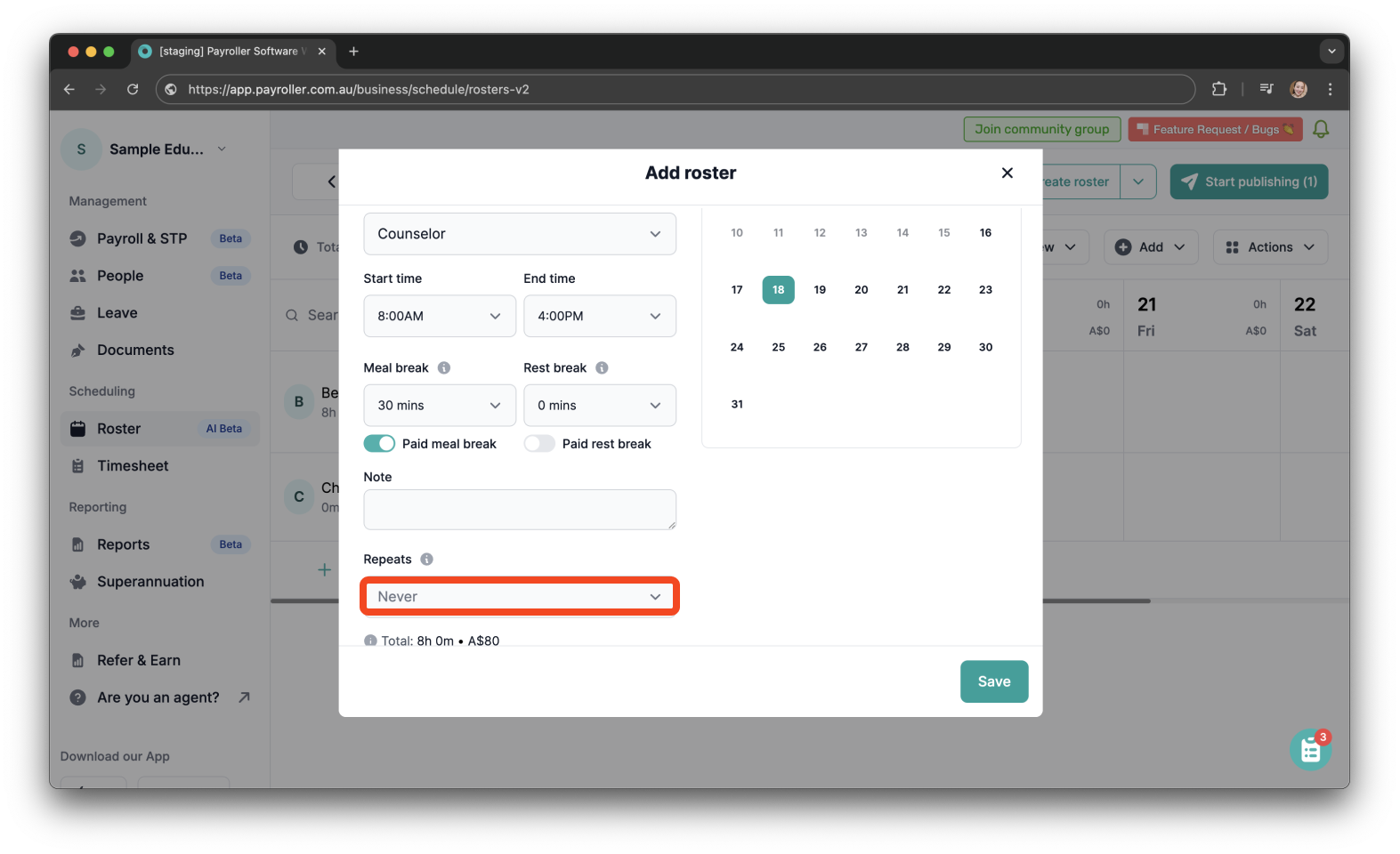
Step 9: Set the shift to repeat (Tomorrow, Rest of the Week, Custom, or Never ).
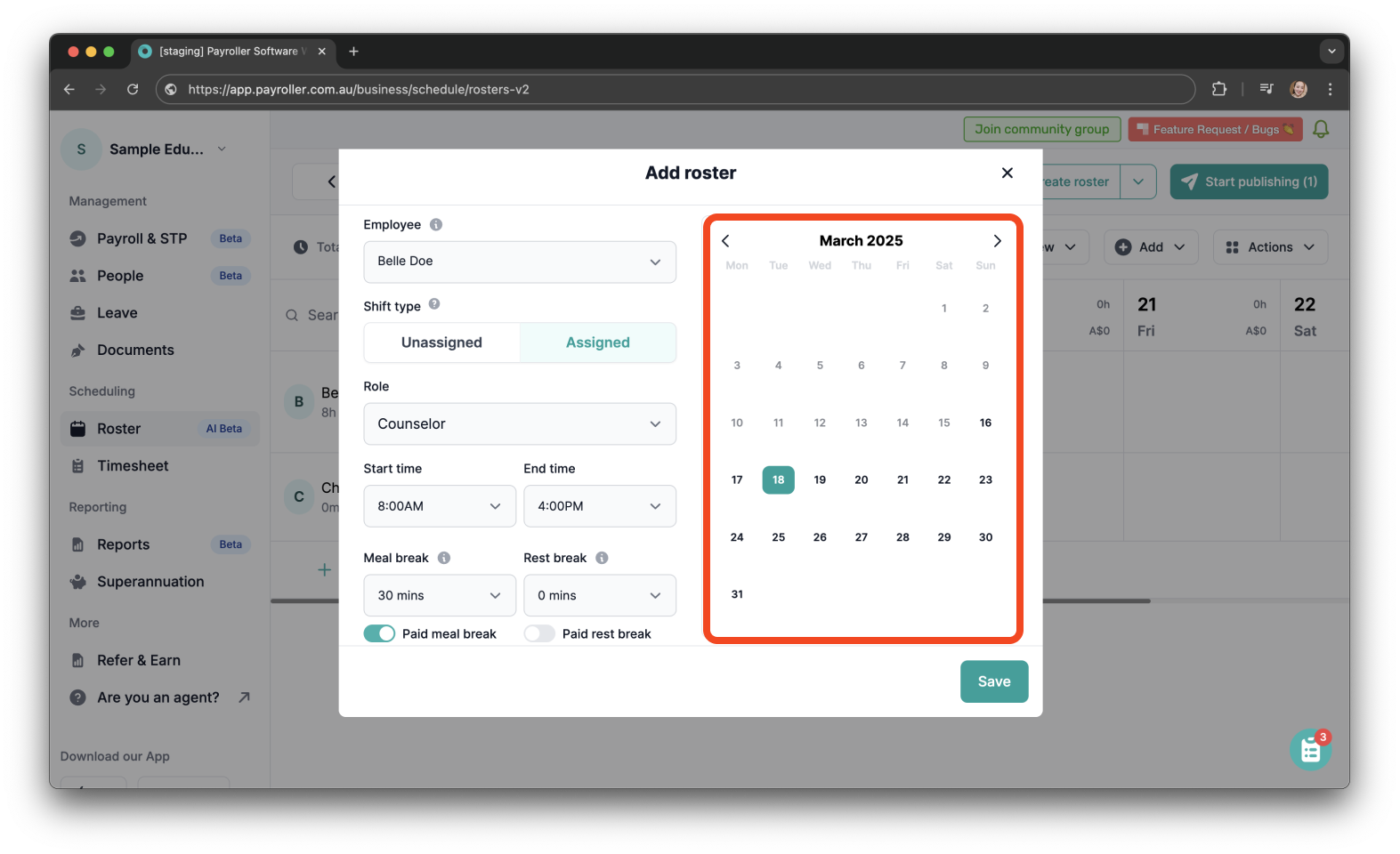
Step 10: Select the days on the calendar for the shift.
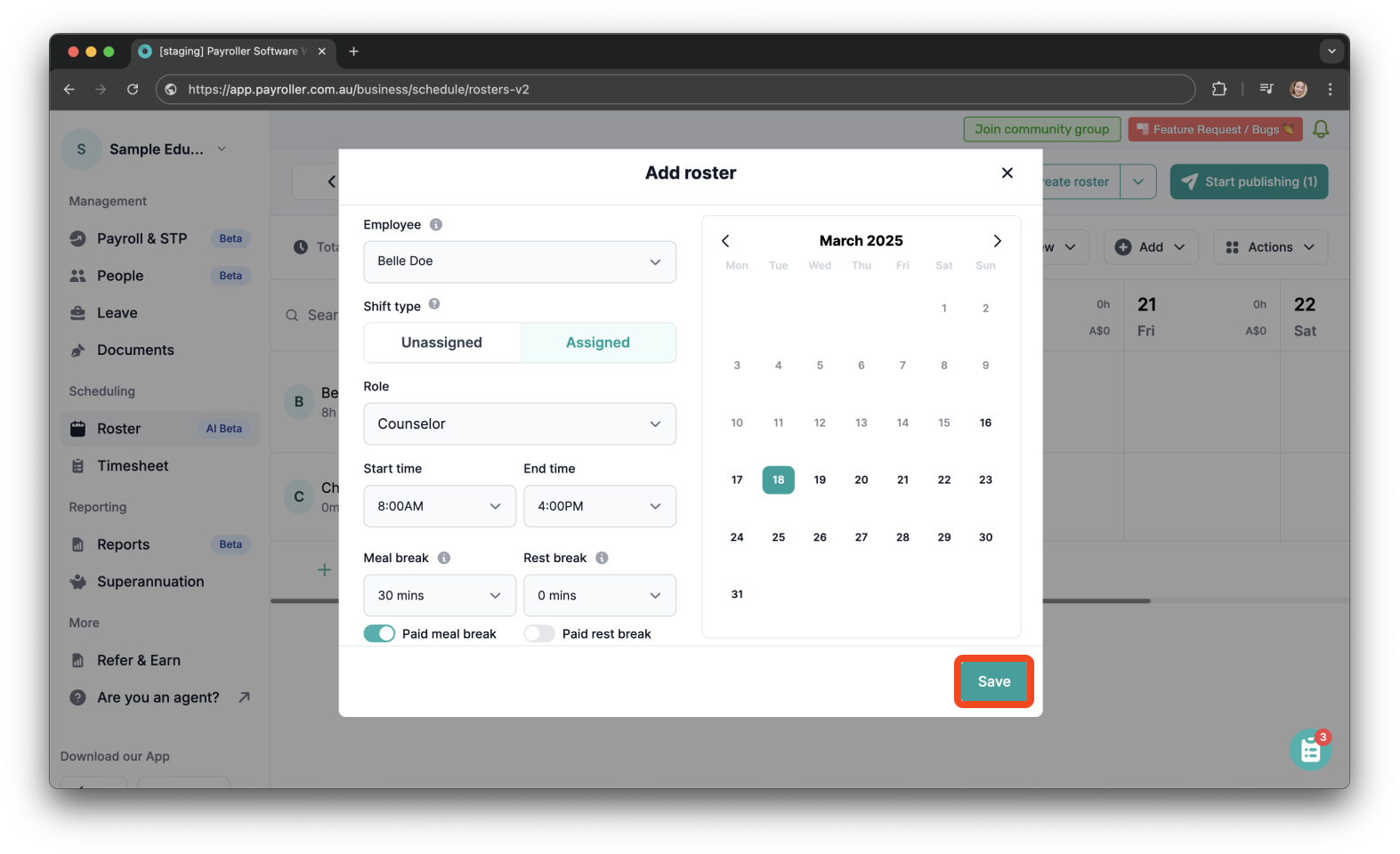
Step 11: Hit on ‘Save’.
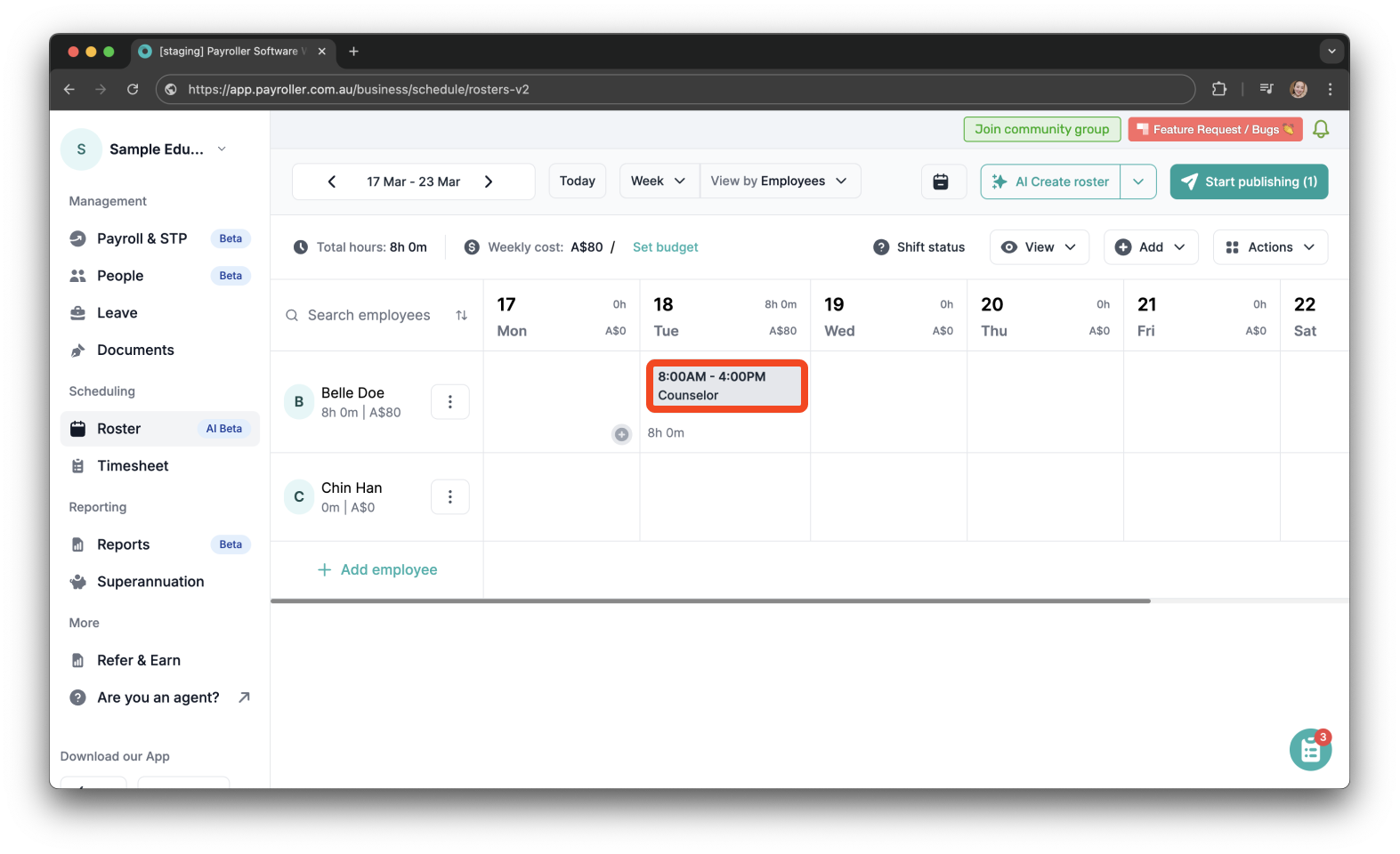
The shifts will now appear on the screen.
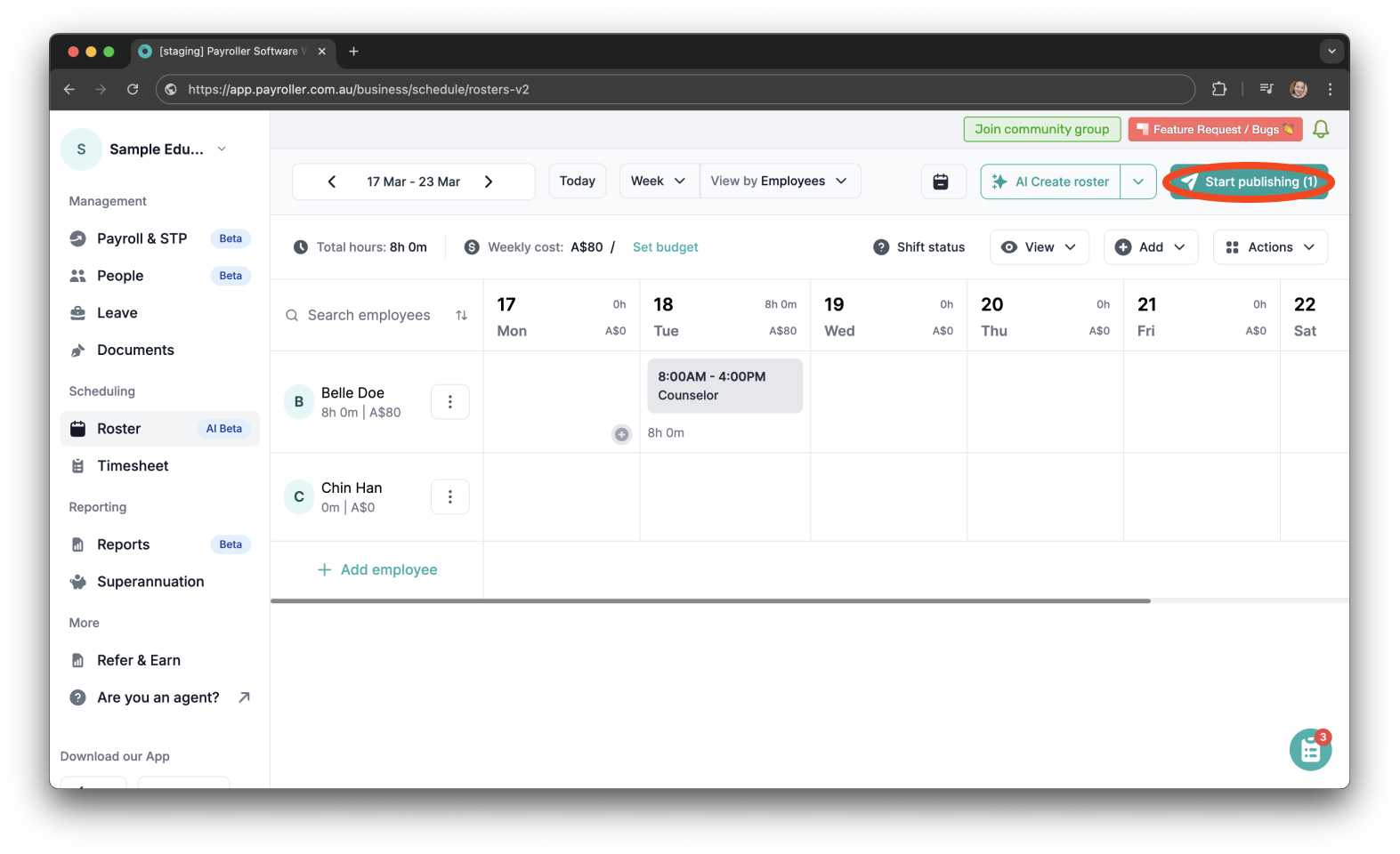
Step 12: After adding the shifts, make sure to publish them so the employees can view them on the app.
Learn how to complete other timesheets and rosters functions on Payroller with our other simple guides:
Discover more tutorials for using Payroller
Sign up to Payroller for free timesheets and online rostering solutions.
Access all Payroller features including single touch payroll (STP), staff scheduling, and timesheets in the web app and mobile app with a Payroller subscription.
Learn more in our Subscription FAQs.