
Learn how to delete Shifts for employees in Rosters in Payroller
Learn how to delete Shifts for employees in Rosters in Payroller with our simple guide below.
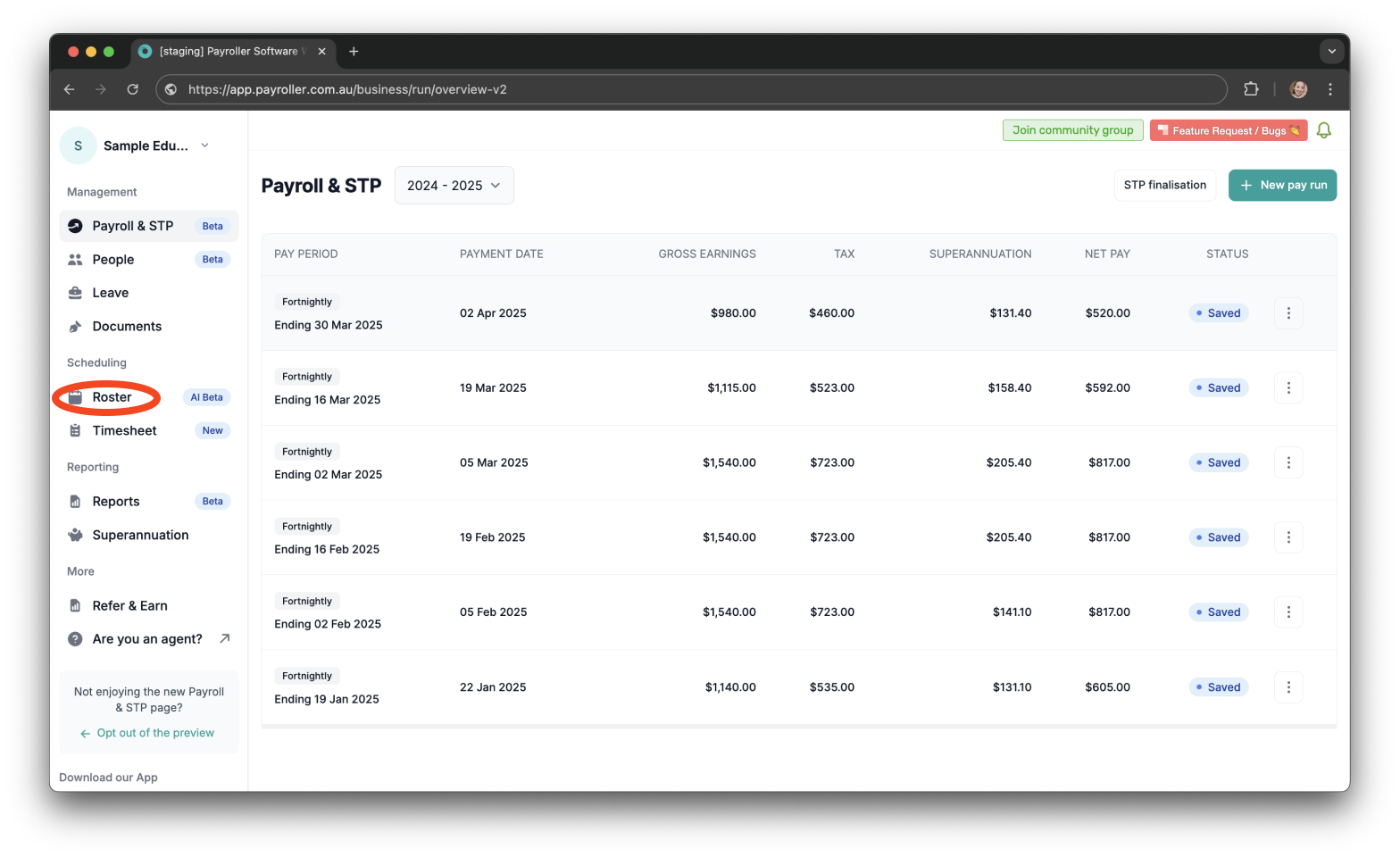
Step 1: Go to ‘Roster’.
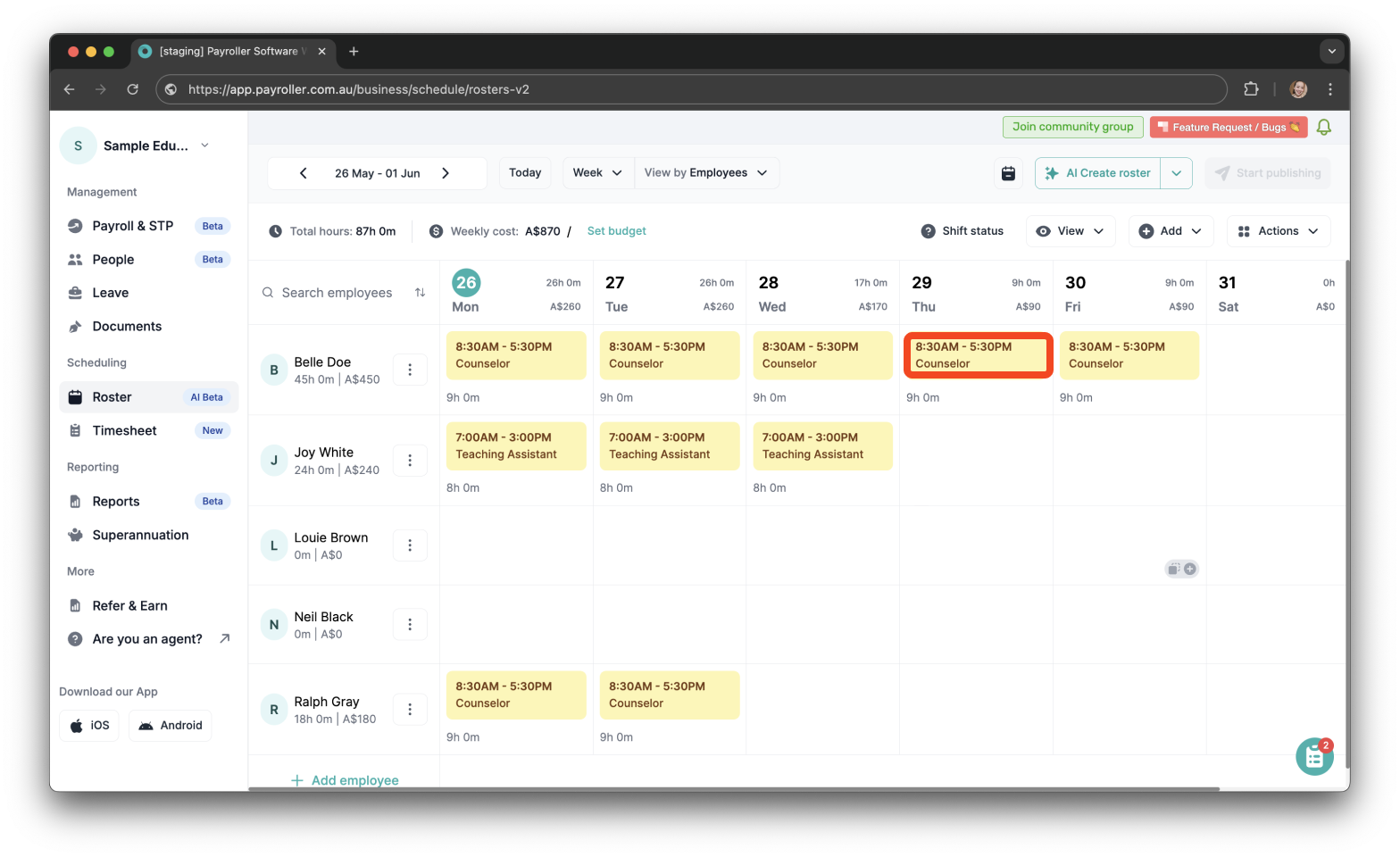
Step 2: Choose the shift that you wish to delete.
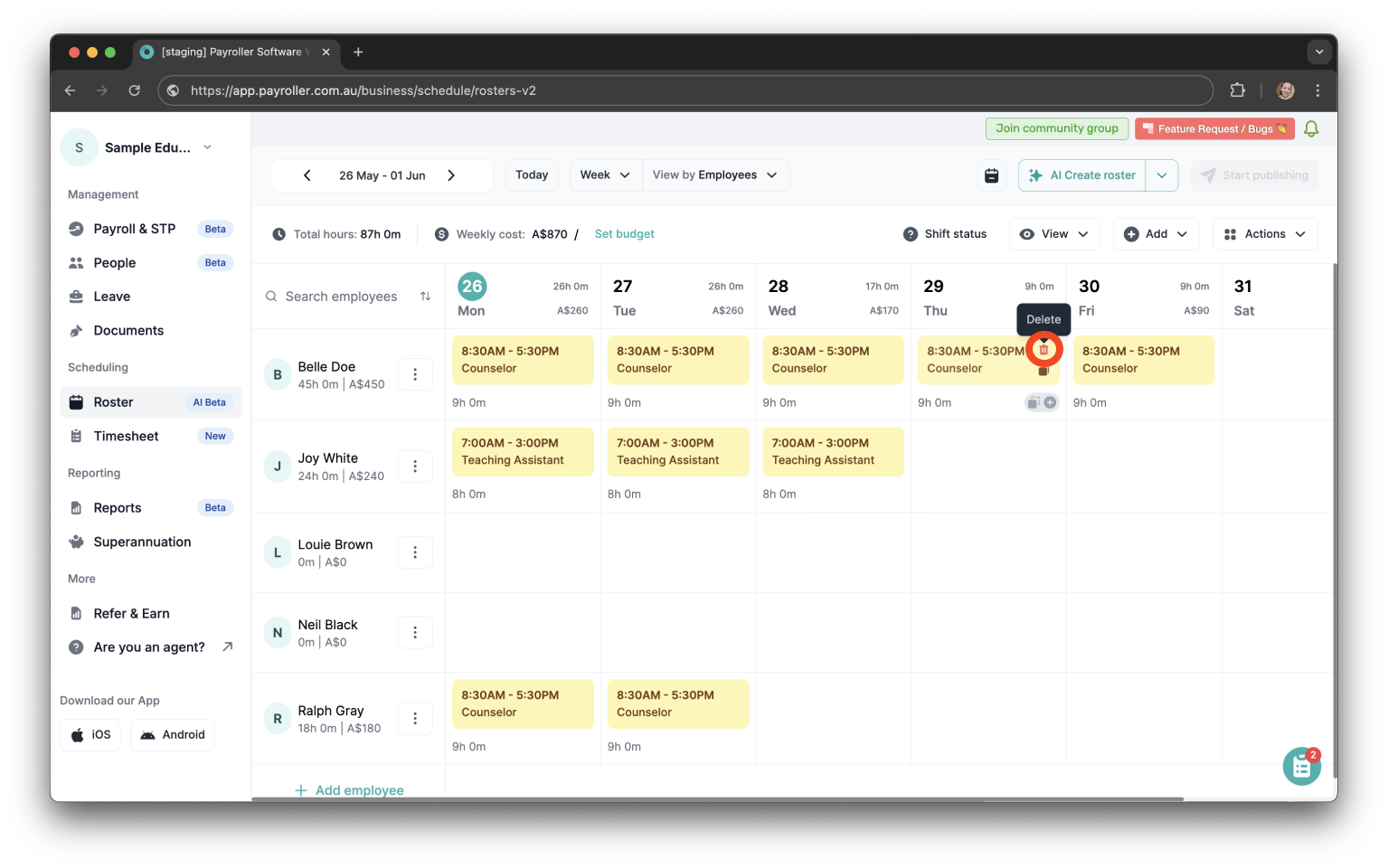
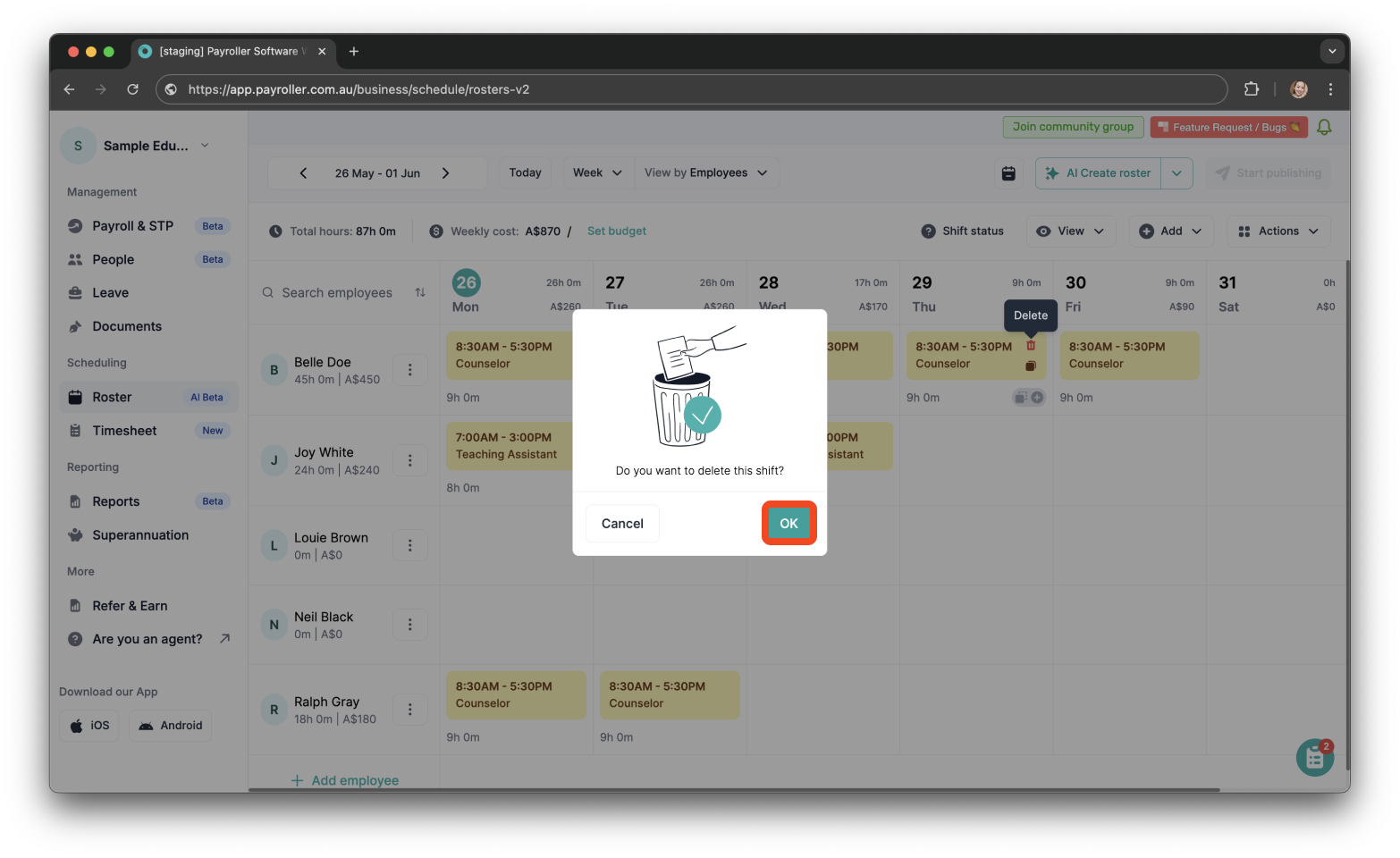
Step 3: Hover over the shift you wish to remove, and click the ‘delete’ icon.
Note: Note: If your employee has an auto-generated timesheet, a pop-up message will appear warning that deleting the shift will also delete the timesheet. Once you click ‘OK’, the shift and the timesheet will be removed.
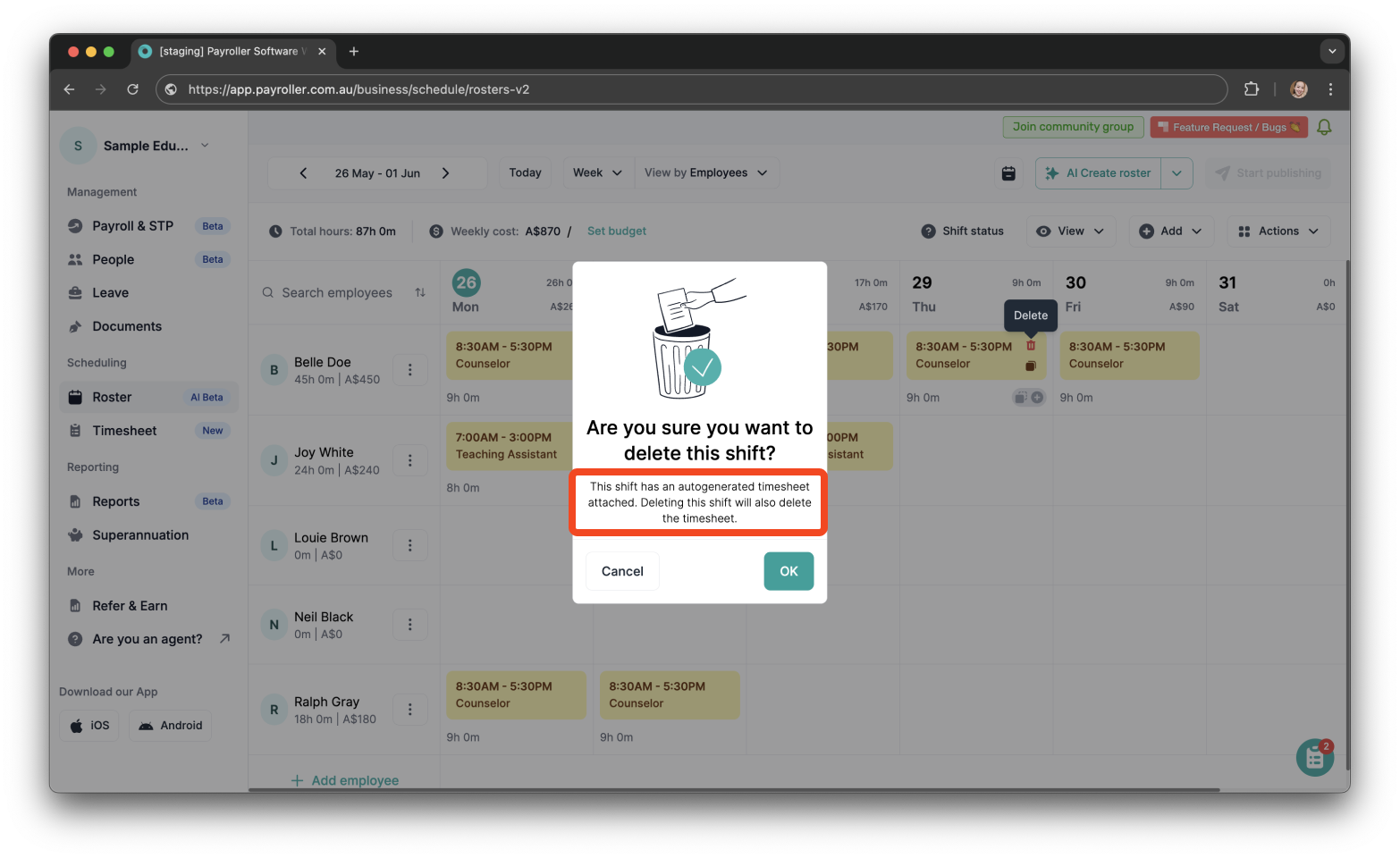
Step 4: Click ‘OK’ again to confirm the deletion of the shift.
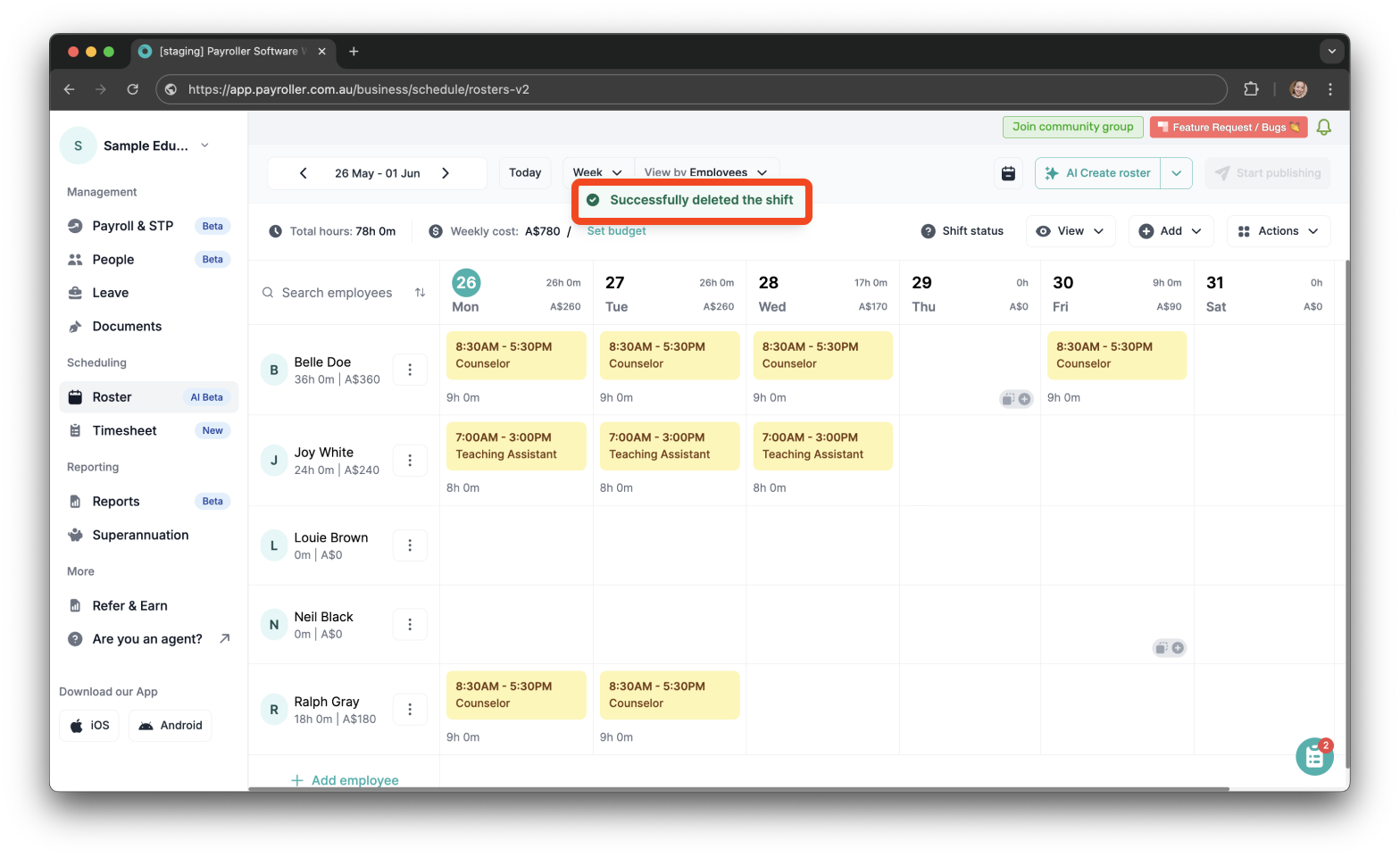
A confirmation message saying ‘Shift deleted’ will be displayed after.
Learn how to complete other timesheets and rosters functions on Payroller with our other simple guides:
Discover more tutorials for using Payroller
Sign up to Payroller for free timesheets and online rostering solutions.
Access all Payroller features including single touch payroll (STP), staff scheduling and timesheets in web app and mobile app with a Payroller subscription.
Learn more in our Subscription FAQs.