
Learn how to edit the start date of Rosters in Payroller
Learn how to edit the start date of Rosters in Payroller with our simple guide below.
By default, roster views are set to start on Monday.
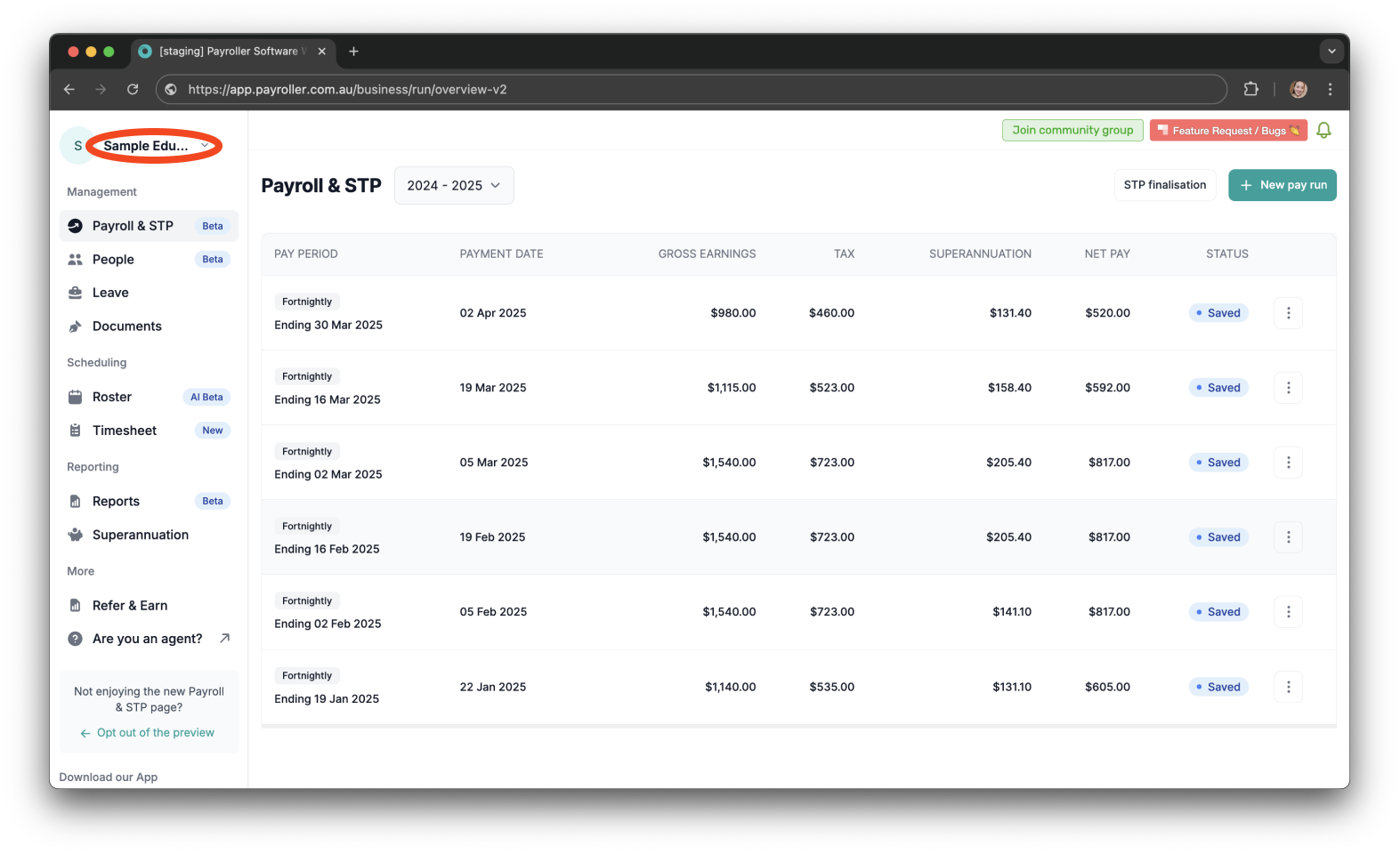
Step 1: To edit this, click the ‘Company name’ in the top left corner of the screen.
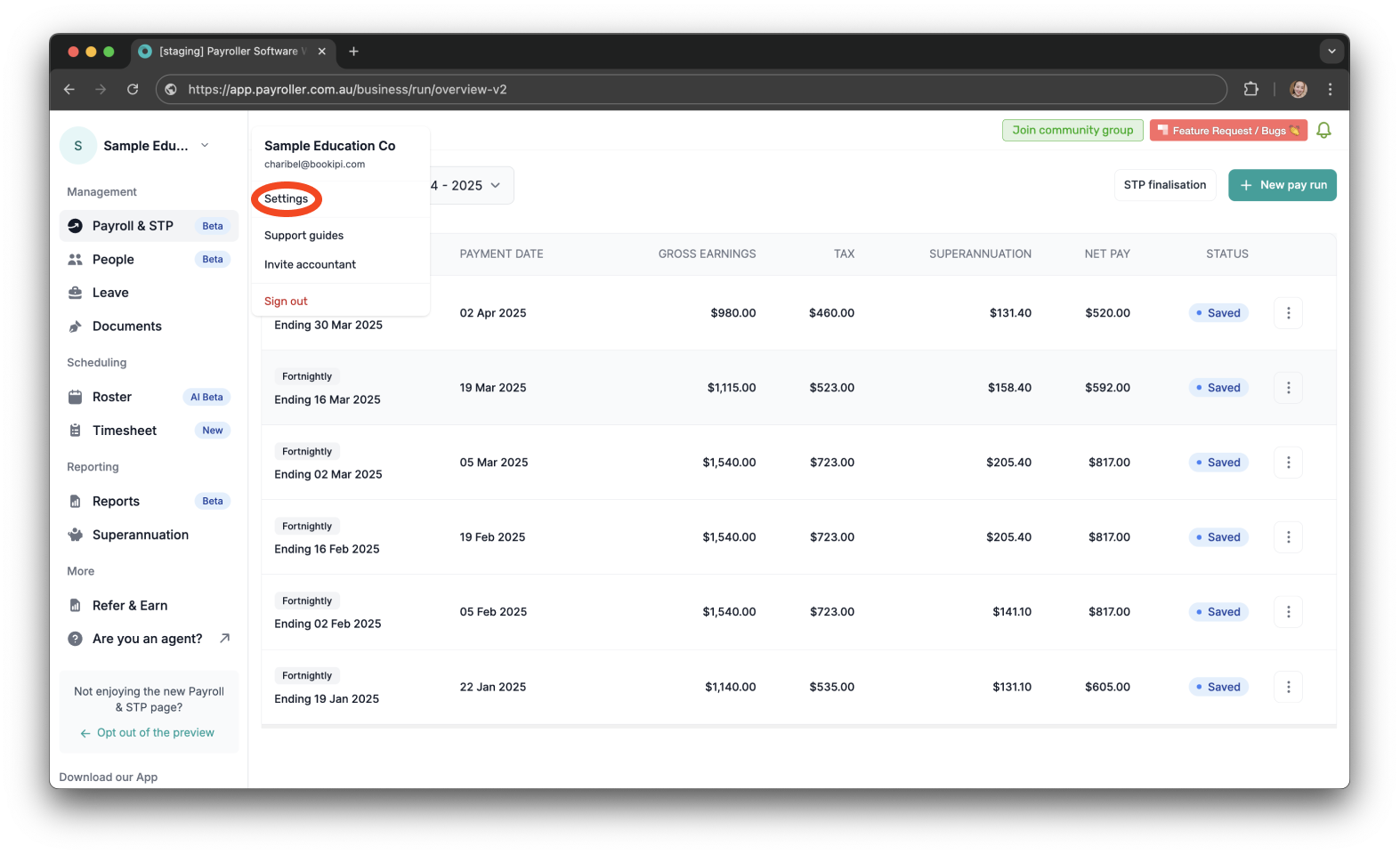
Step 2: Select ‘Settings’.
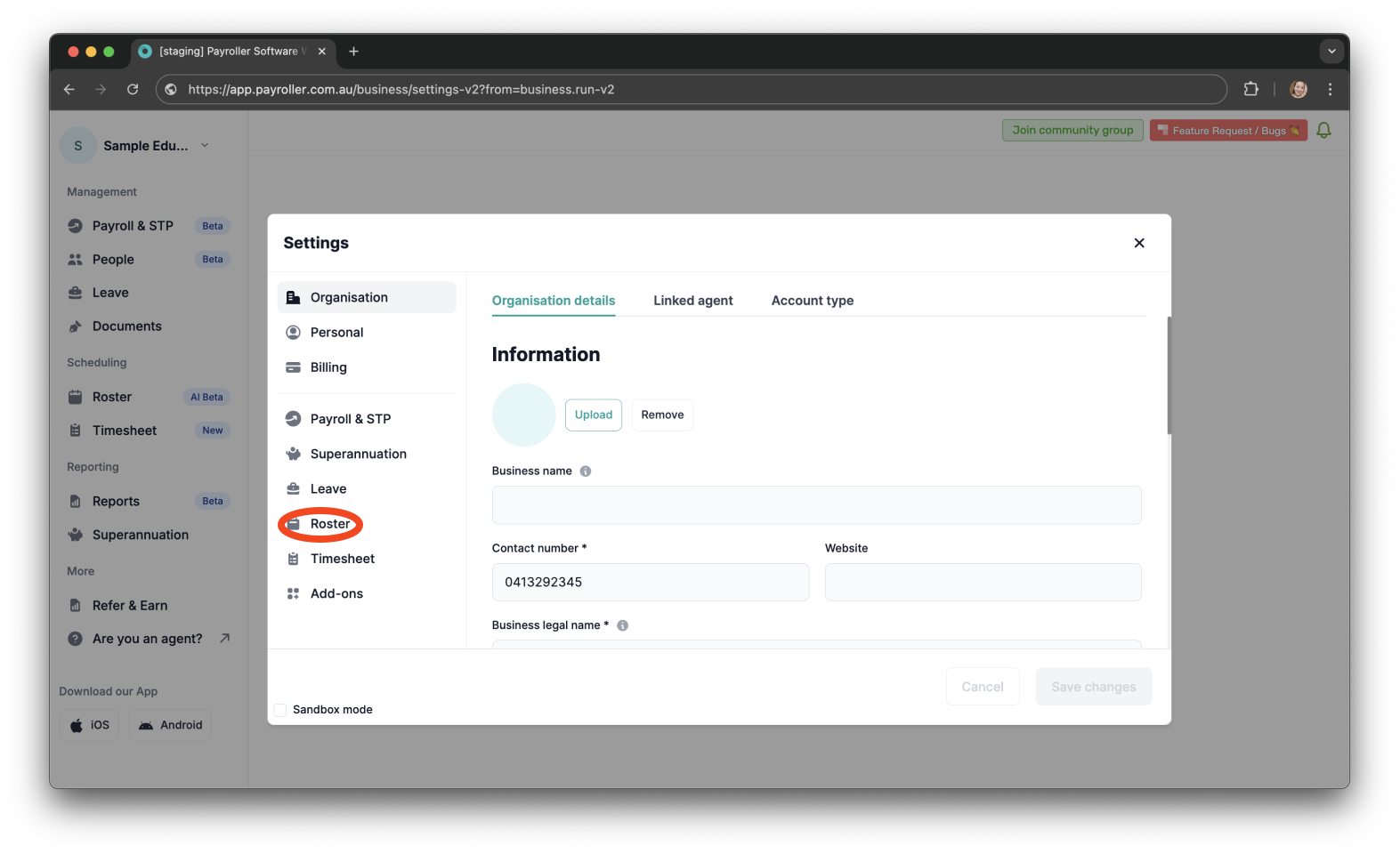
Step 3: Choose ‘Roster’.
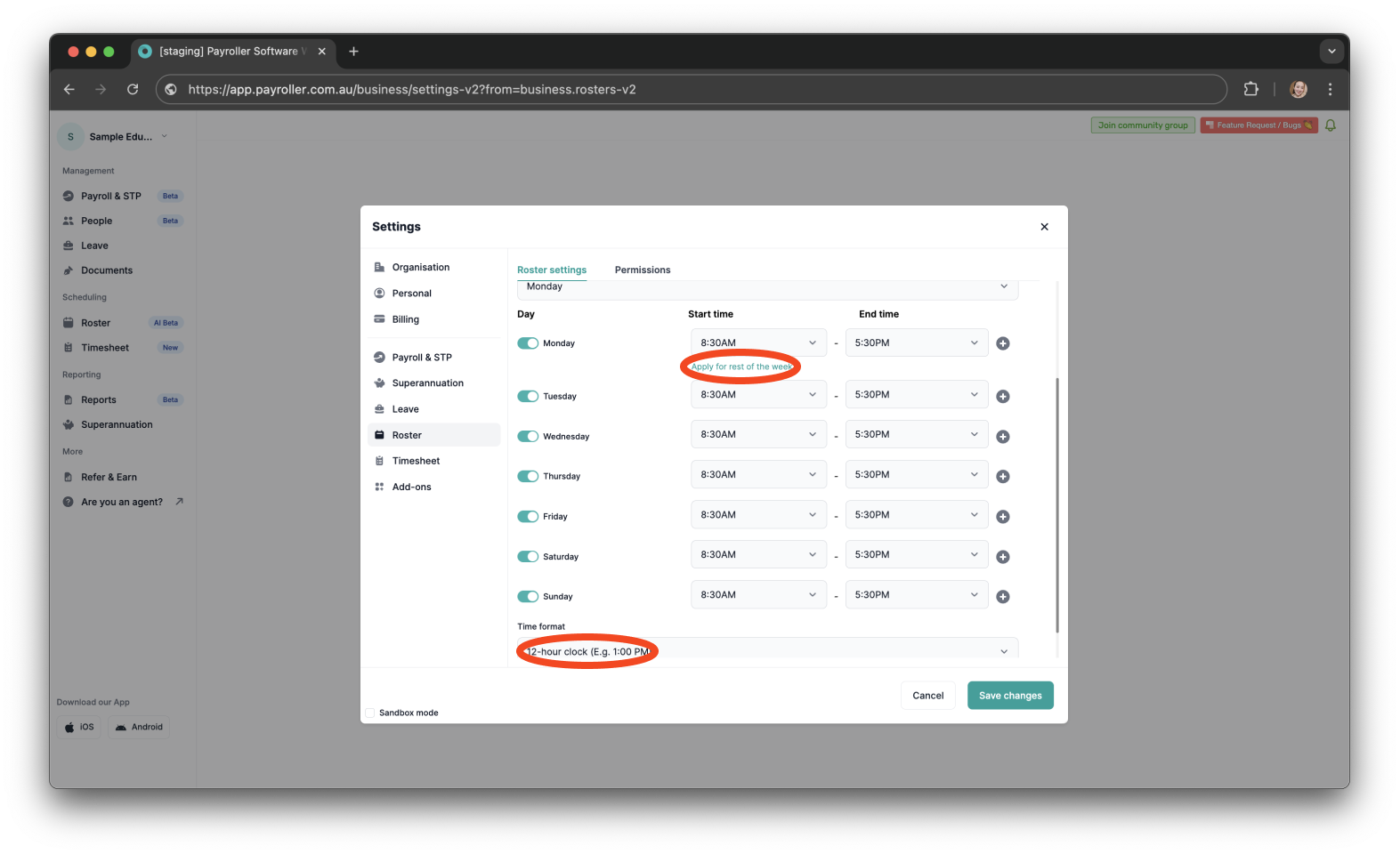
Step 4: Under ‘Roster settings’, update the ‘Start Date’. You can choose any day from Monday to Sunday.
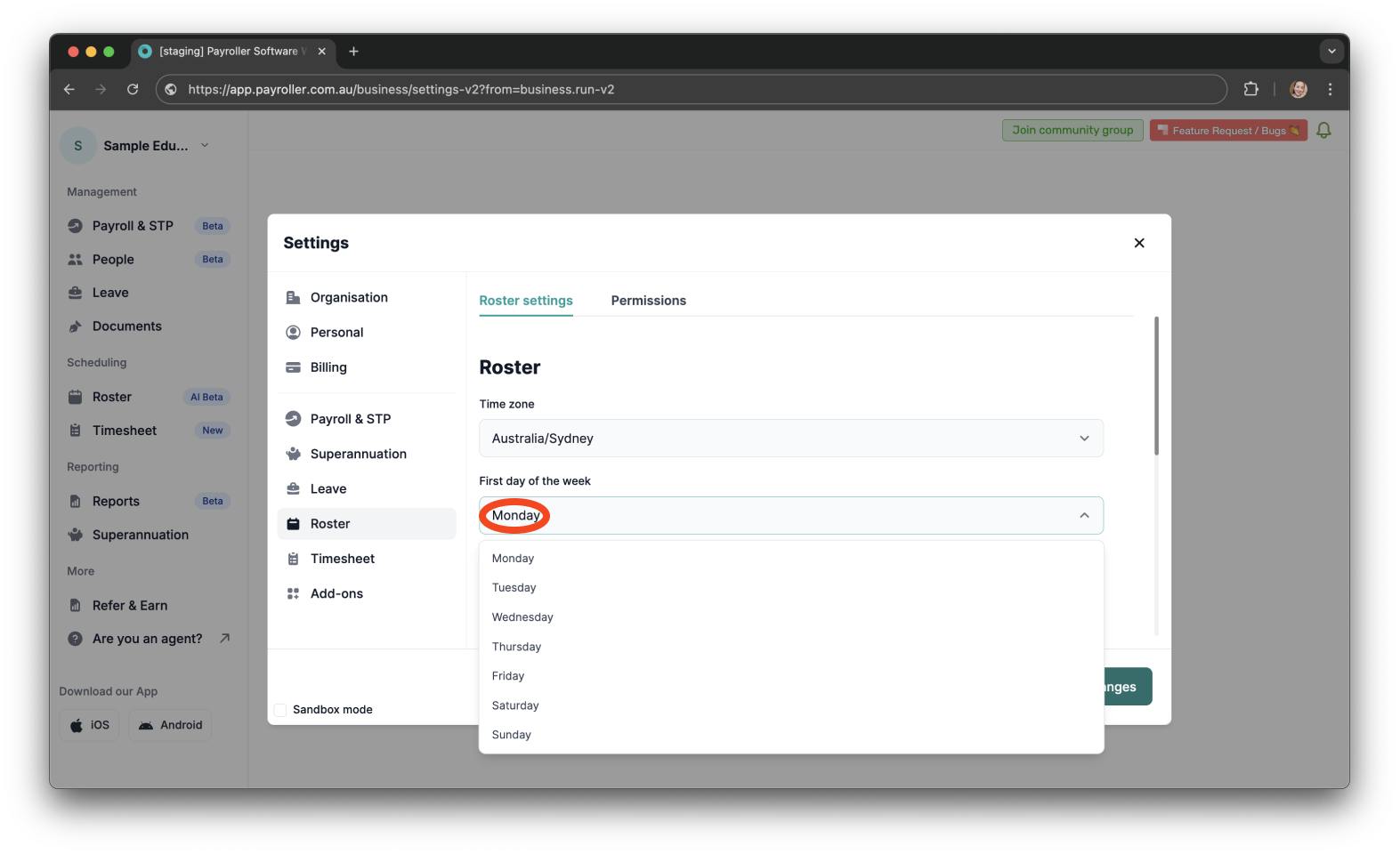
Note: You can set each day’s ‘Start and End times’. To use the same schedule all week, click ‘Apply for the rest of the week’. You can also choose a ‘12-hour’ or ‘24-hour’ time format.
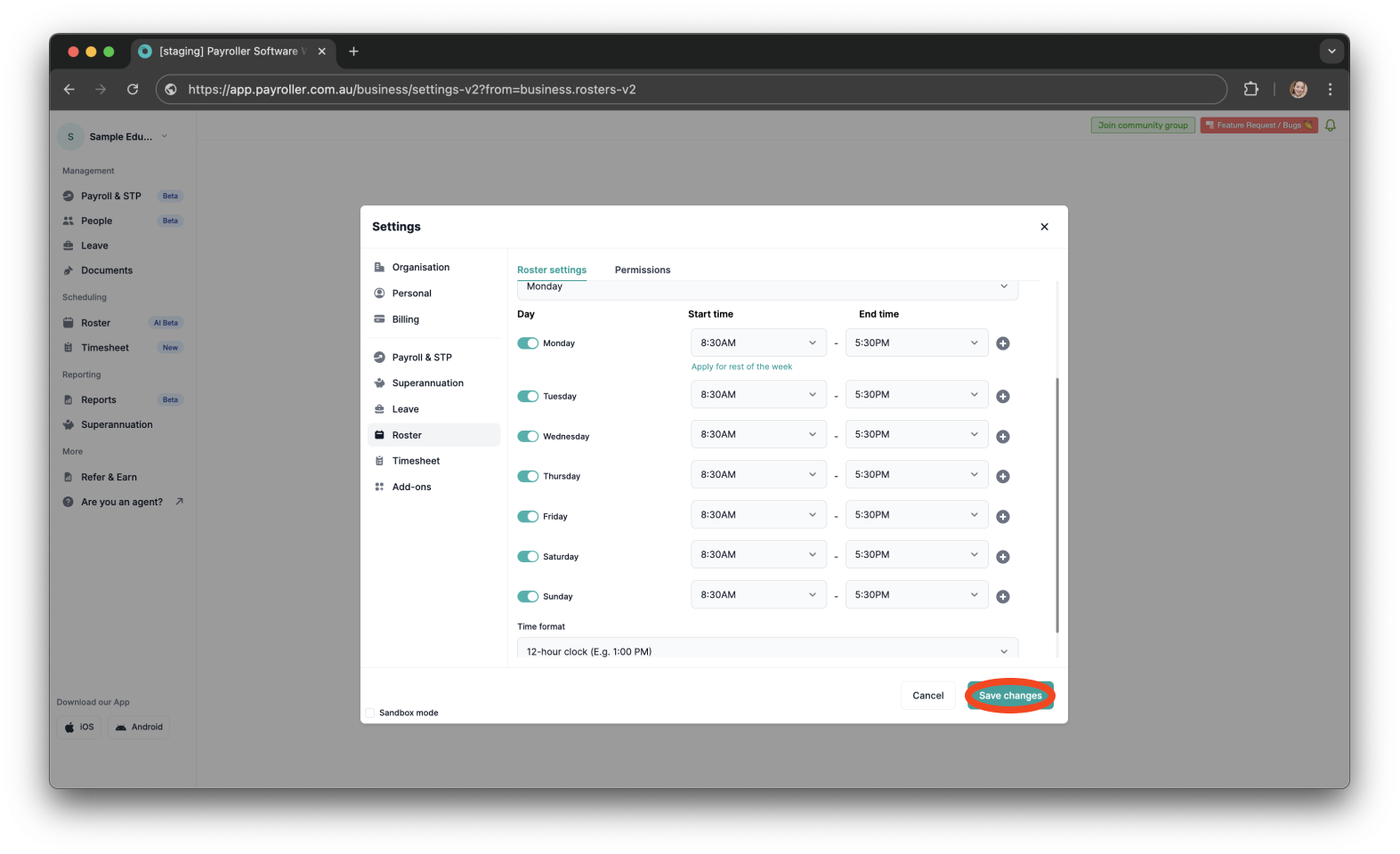
Step 5: Click ‘Save changes’ after making the necessary changes.
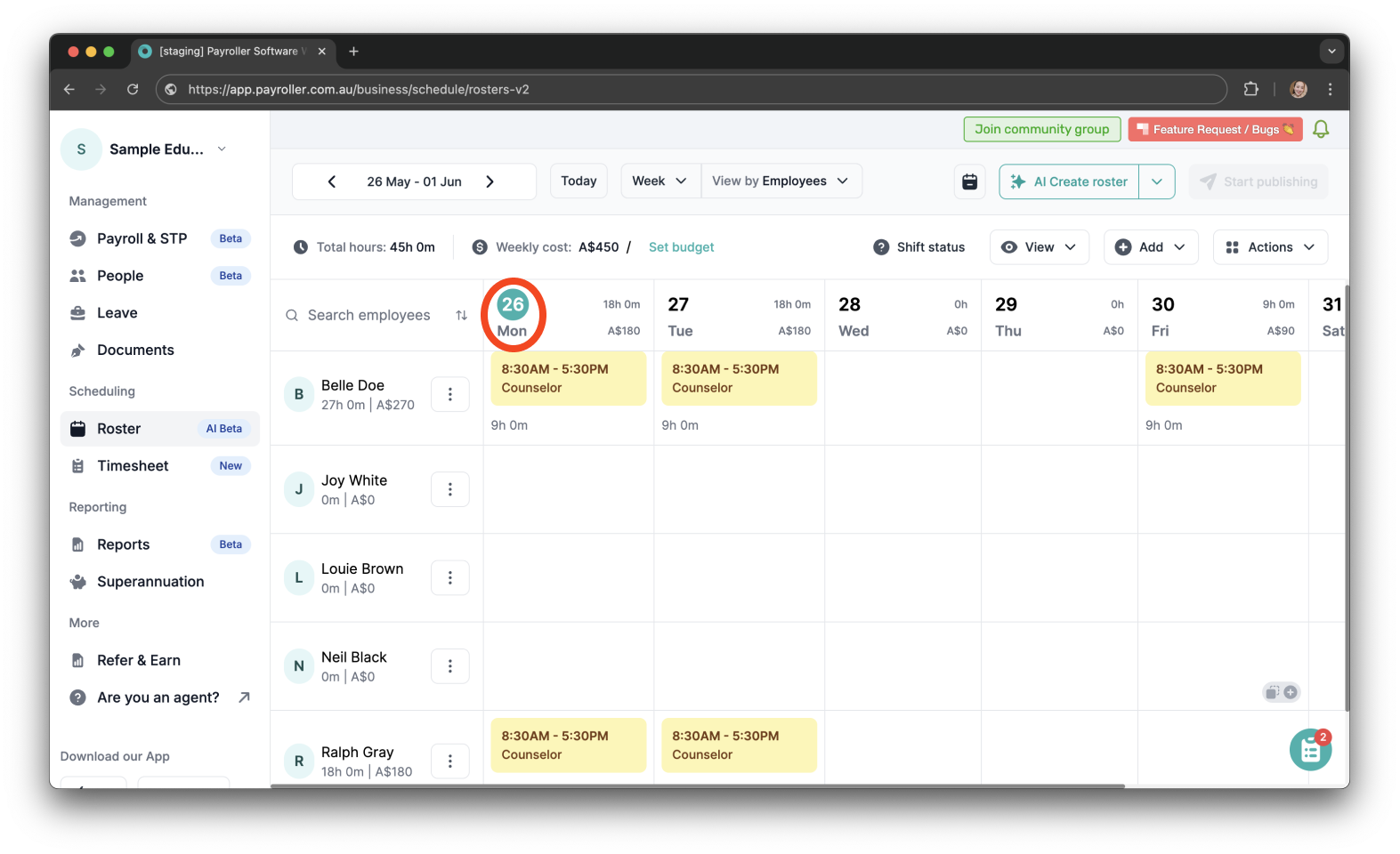
Step 6: The roster view will begin on the ‘Start date’ you have selected.
Discover more tutorials & get the most out of using Payroller
Try out Payroller for free. Learn how to create and submit a pay run.
You can also get a Payroller subscription that gives you access to all features via the web and mobile app. Read up on our Subscription FAQs.
Invite your accountant, bookkeeper or tax agent to help you run your business payroll with our guide.