
Learn how to edit a pay run that has been submitted to the ATO on the Payroller mobile app
Learn how to edit a pay run that has been submitted to the ATO on the Payroller mobile app with our simple guide below. This guide also covers how to add missing employees to your pay runs to ensure compliance and accuracy.
There may be times when you will need to edit a pay run that has already been submitted to the ATO. For instance, you might need to add a missing employee to ensure they are included in the payroll or make other necessary adjustments.
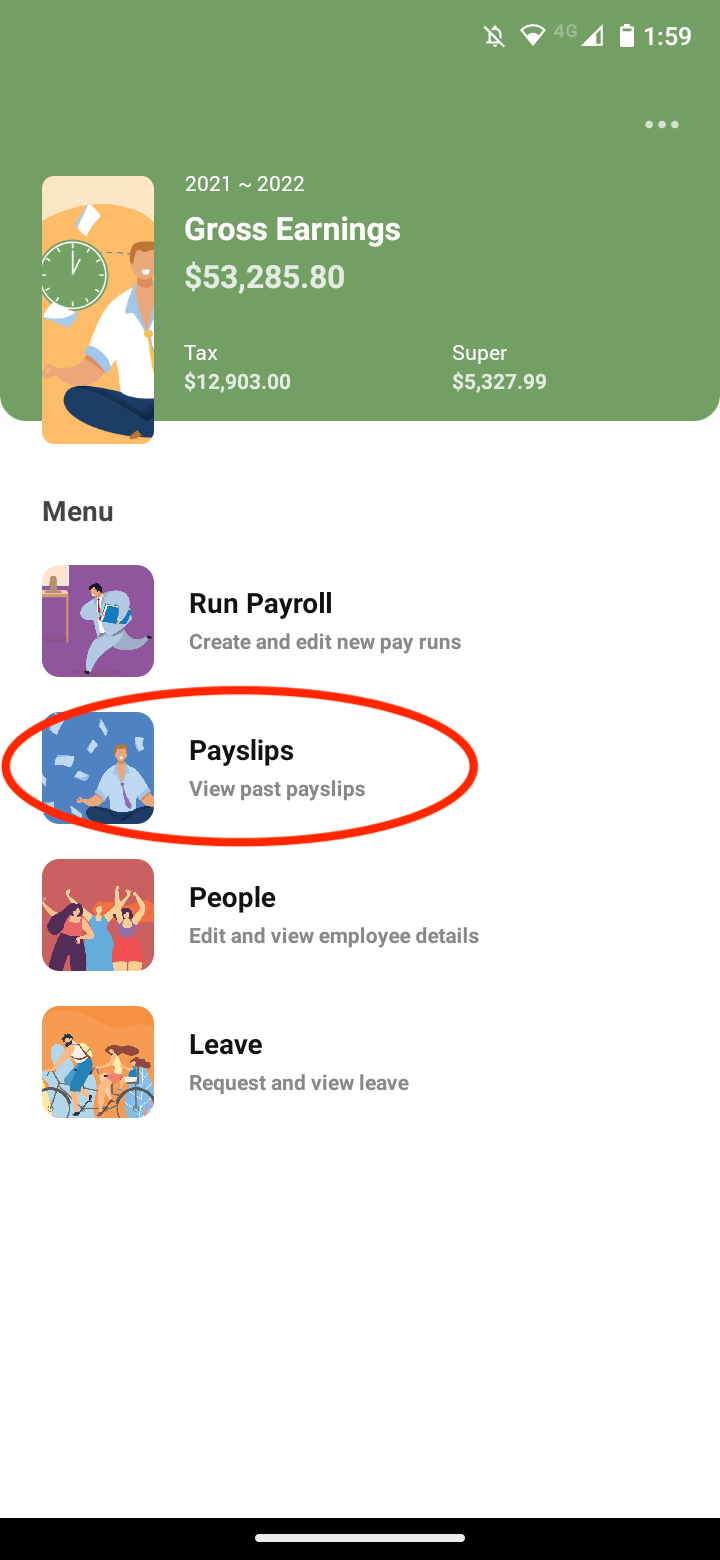
To do this, first select ‘Payslips’.
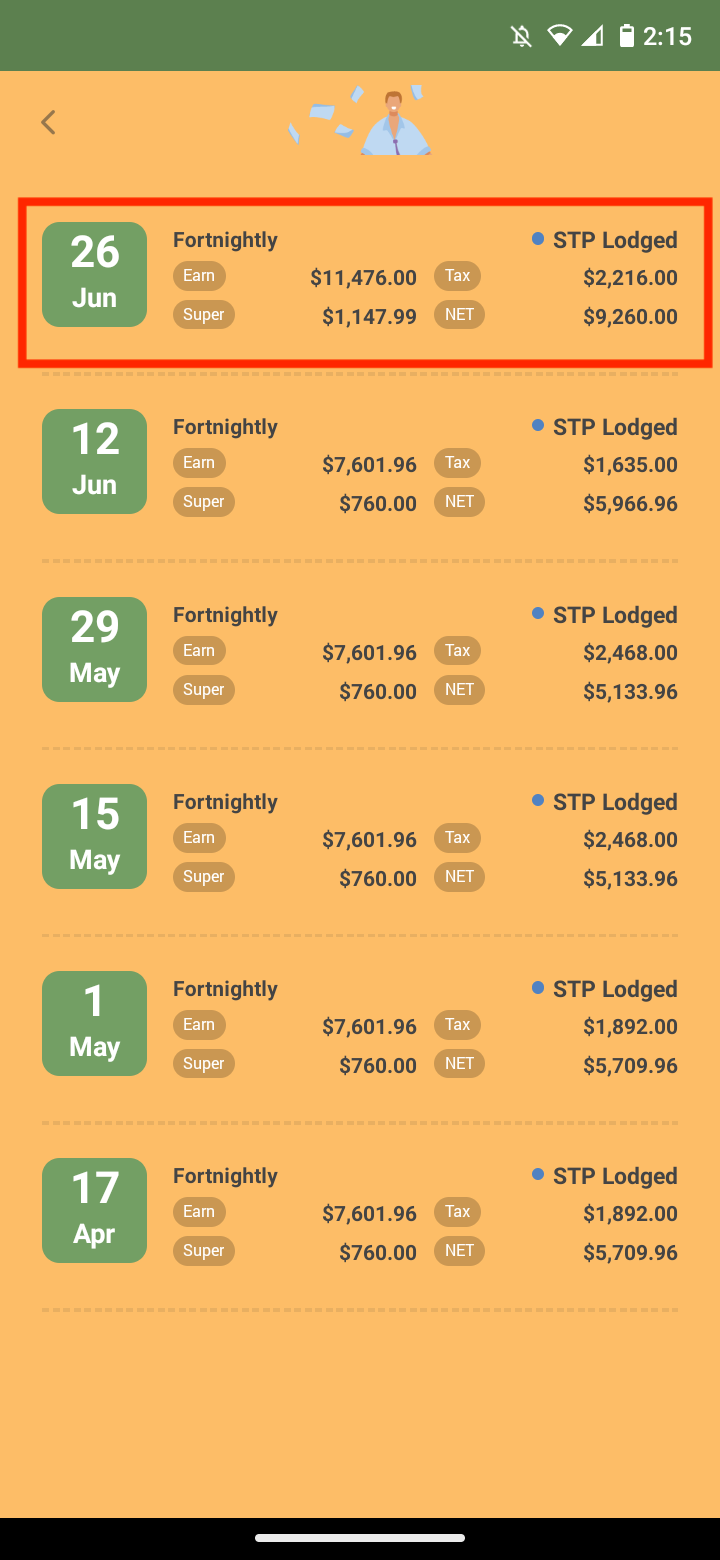
Select the pay run you wish to edit.
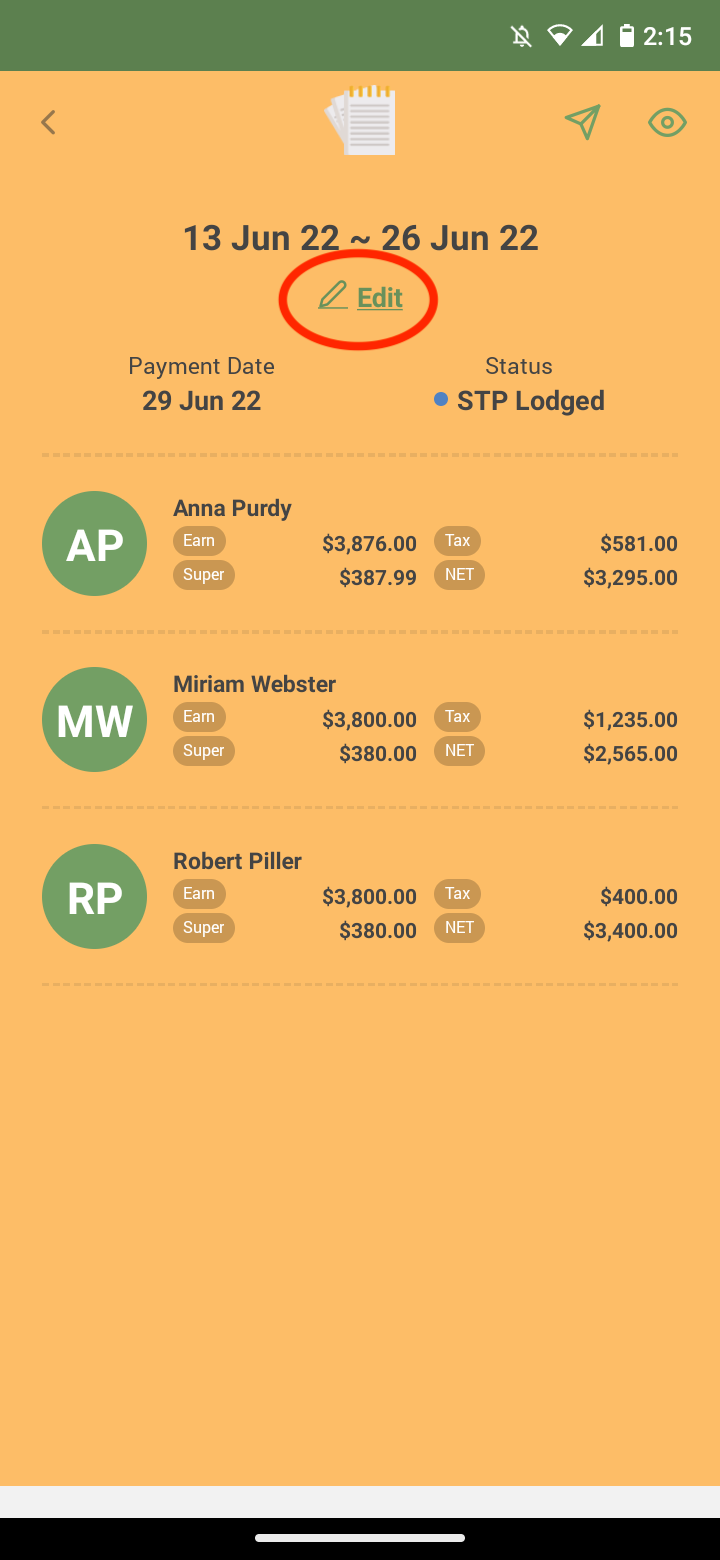
Select ‘Edit’.
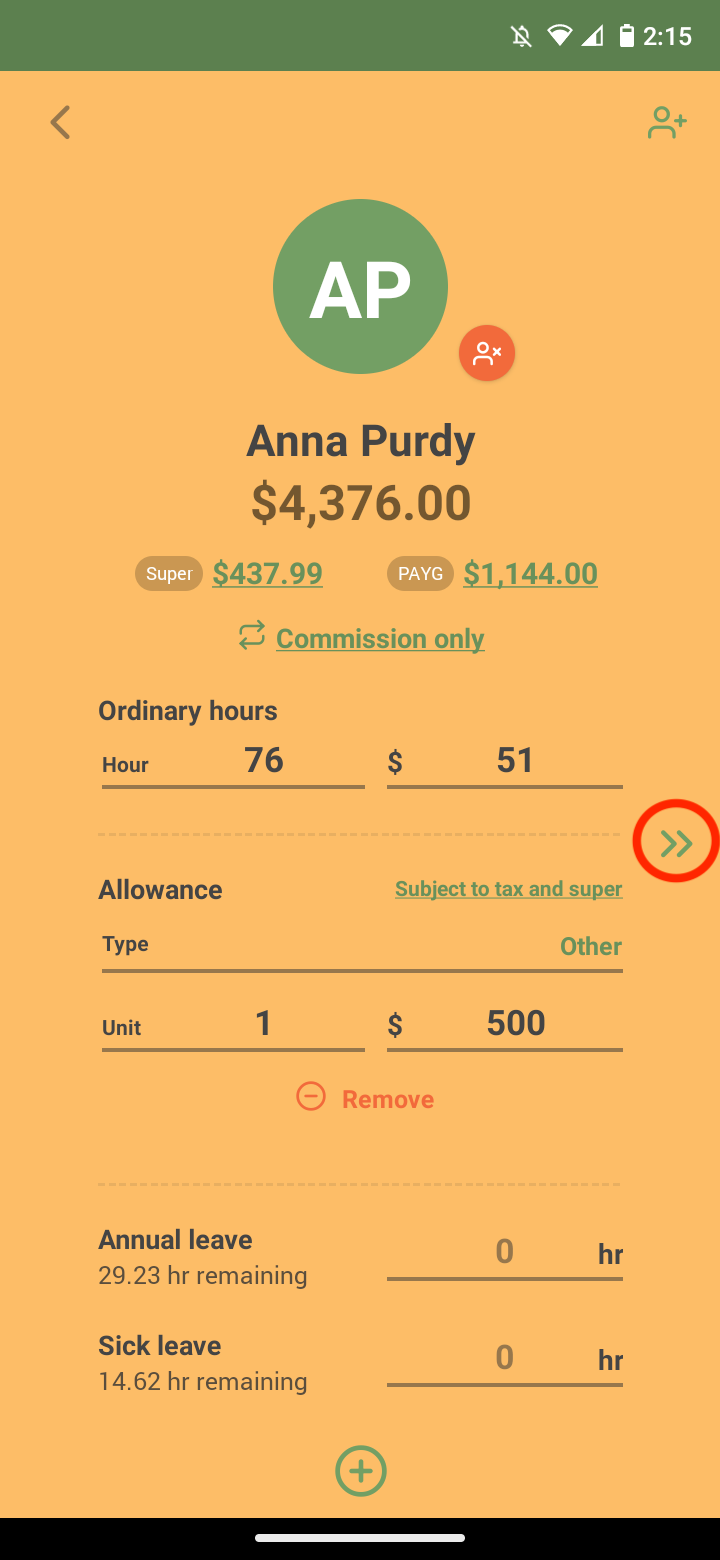
Make your edits on the employee as required. Add different components to your pay runs by selecting the ‘+’ icon. Use the ‘+’ icon specifically to add missing employees to your pay run if needed, ensuring all individuals are properly included.
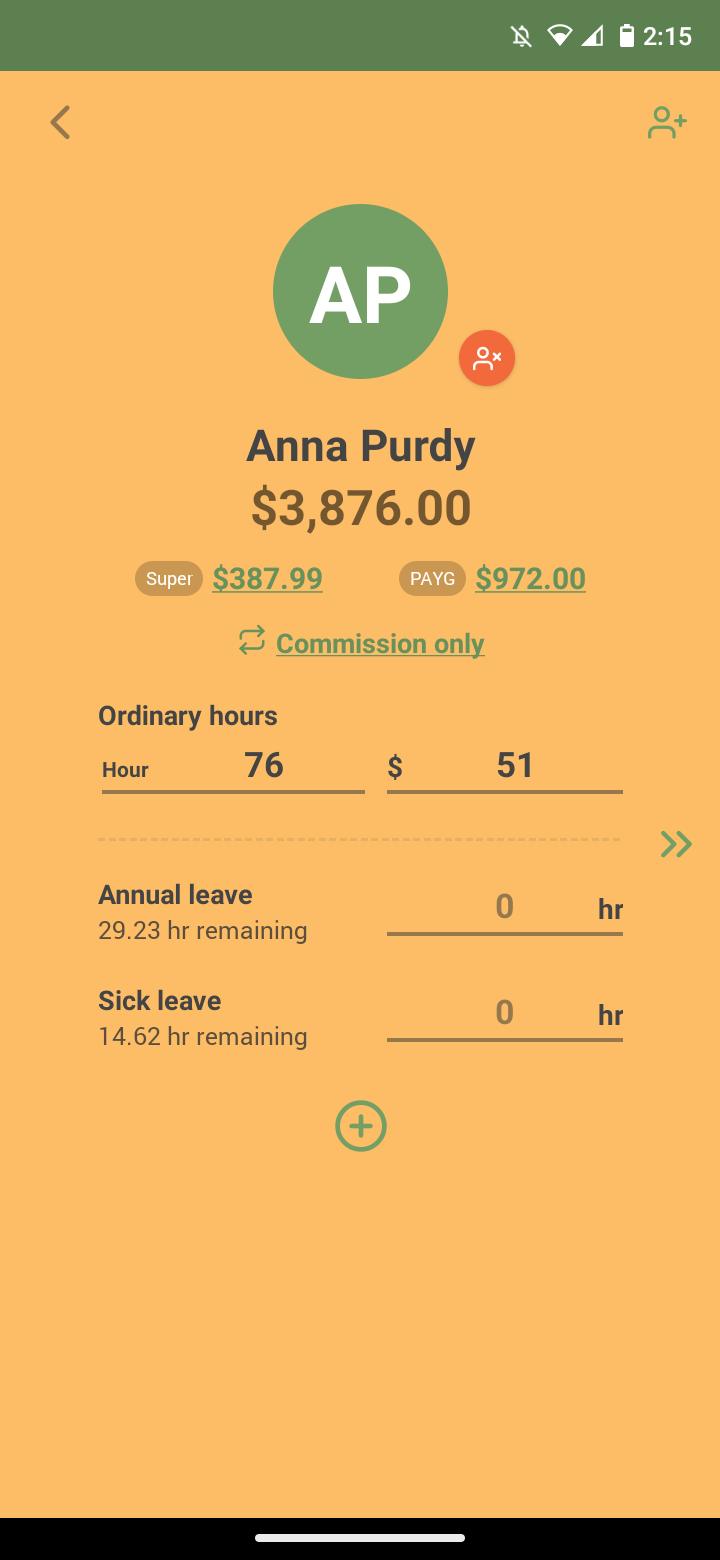
Once you are happy with the changes swipe the screen to the left OR select the double arrow on the right.
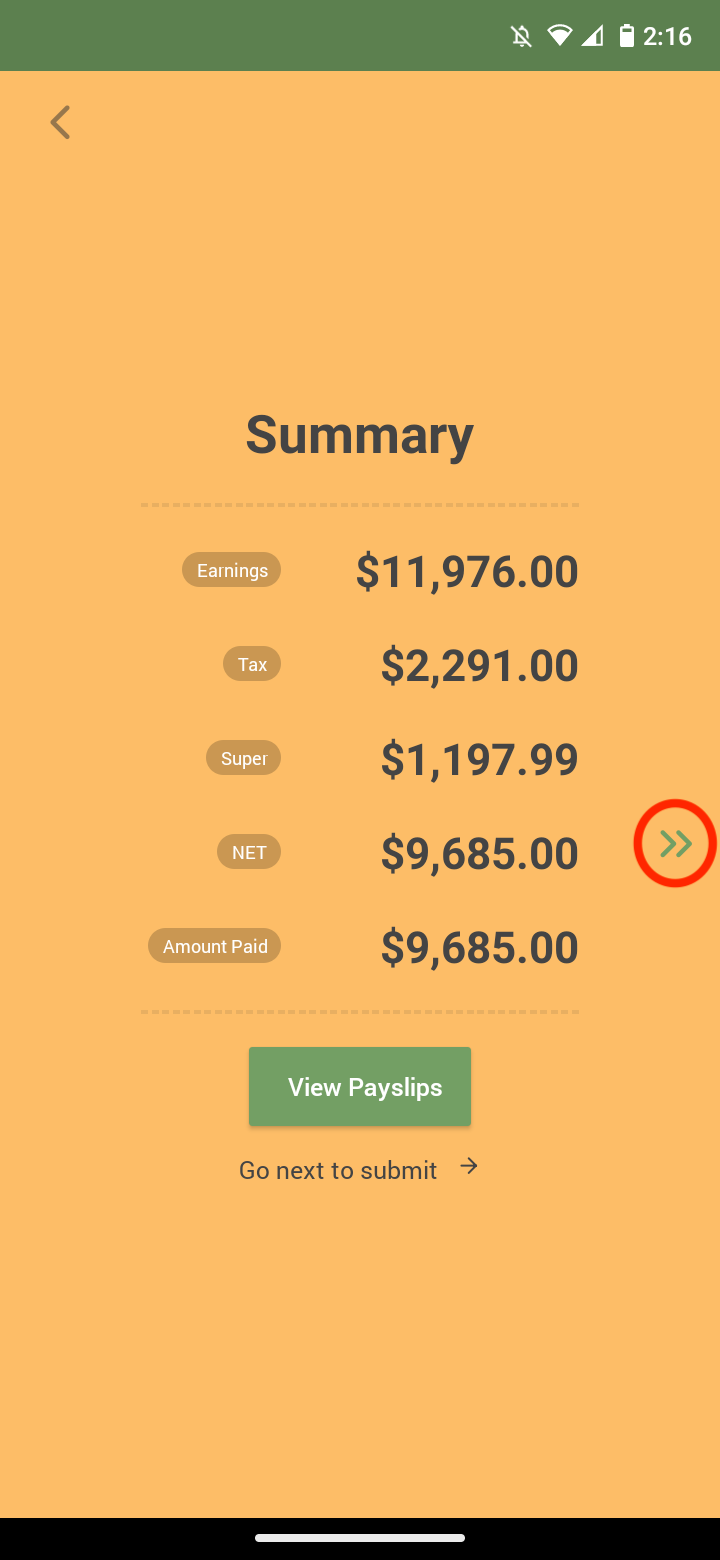
After reviewing the summary, swipe left on the screen OR select the arrows on the right.
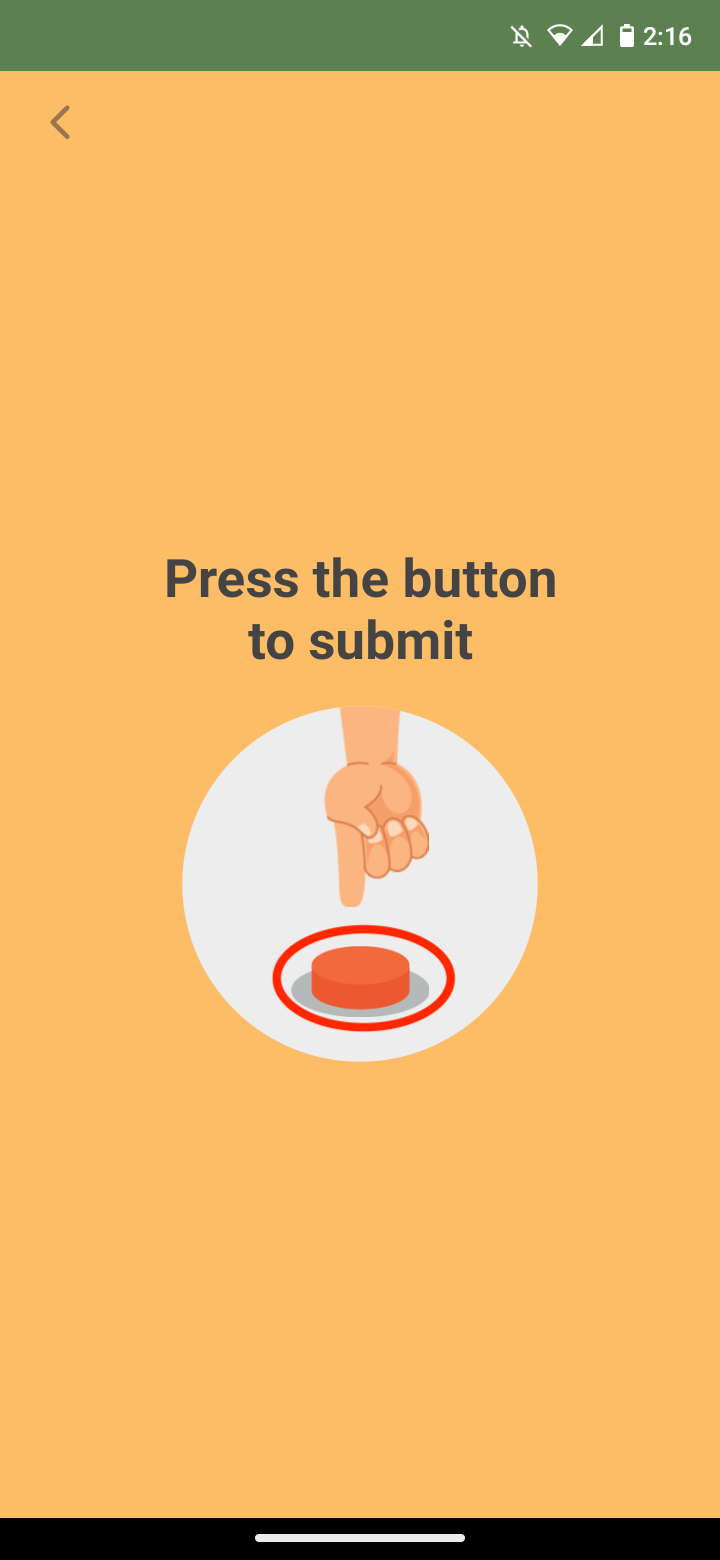
Press the submit button to complete your pay run.
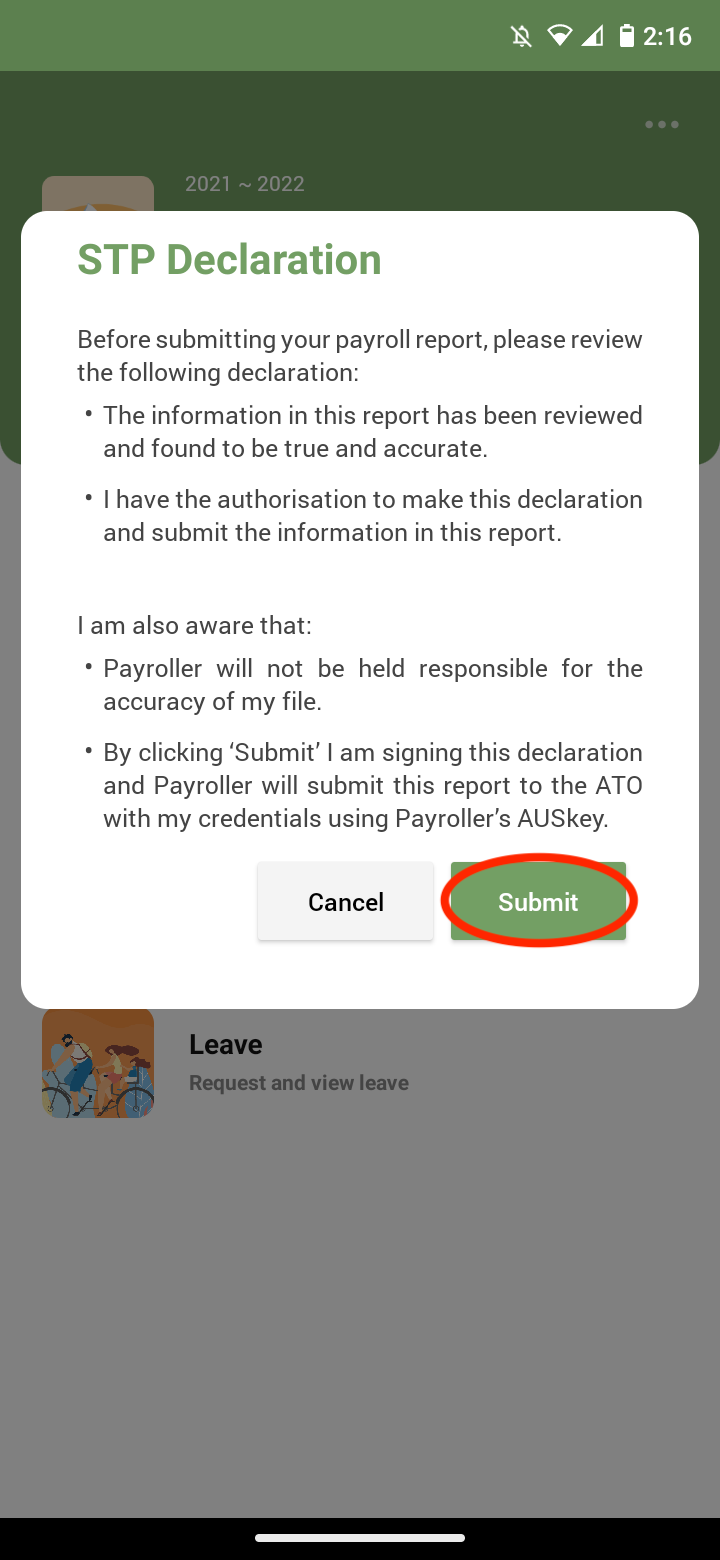
Select ‘Submit’ to submit STP to the ATO.
Your pay run has now been updated and the update event has been submitted to the ATO.
Discover more tutorials & get the most out of using Payroller
Try out Payroller for free. Learn how to create and submit a pay run in the Payroller mobile app.
You can also get a Payroller subscription that gives you access to all features via the web and mobile app. Read up on our Subscription FAQs.
Invite your accountant, bookkeeper or tax agent to help you run your business payroll with our guide. Ensuring ATO Compliance When modifying a pay run, always check the accuracy of all payroll details before resubmitting to the ATO. Doing so avoids errors in Single Touch Payroll reporting and ensures compliance. Submit the updated pay run promptly to keep your records accurate and compliant.