
Learn how to edit the agent account holder’s name from the agent portal on Payroller.
Learn how to edit your agent account holder’s name from the agent portal on Payroller with our simple guide below.
There are two versions of Payroller
Version 1: Old version
Step 1: From the Agent Portal, select the card labeled as ‘Agent account’.
Please note if you don’t have a card with ‘Agent account’ written on it you may have hidden your agent account.
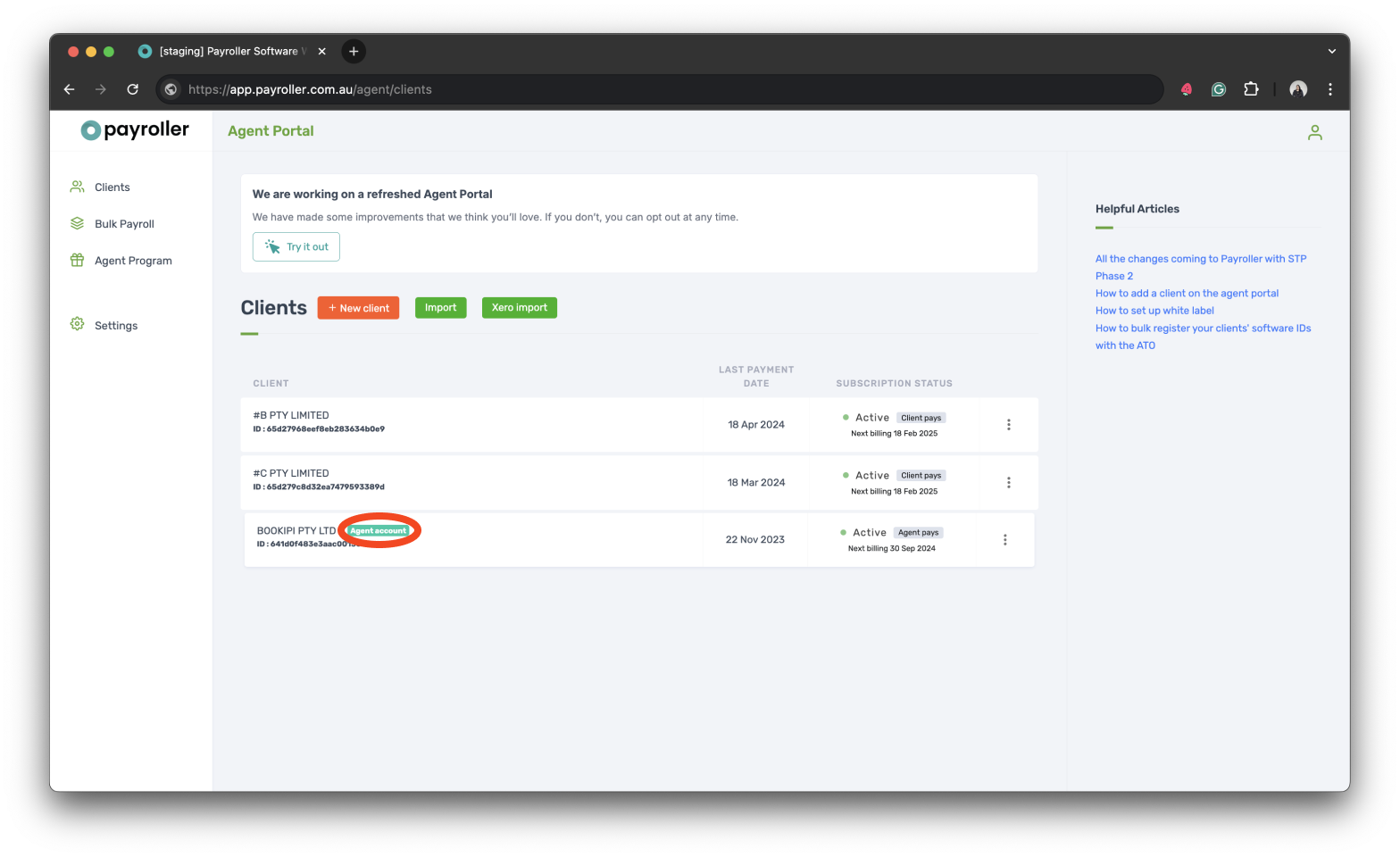
Step 2: Go to your Agent’s Profile located in the upper left corner of your agent portal.
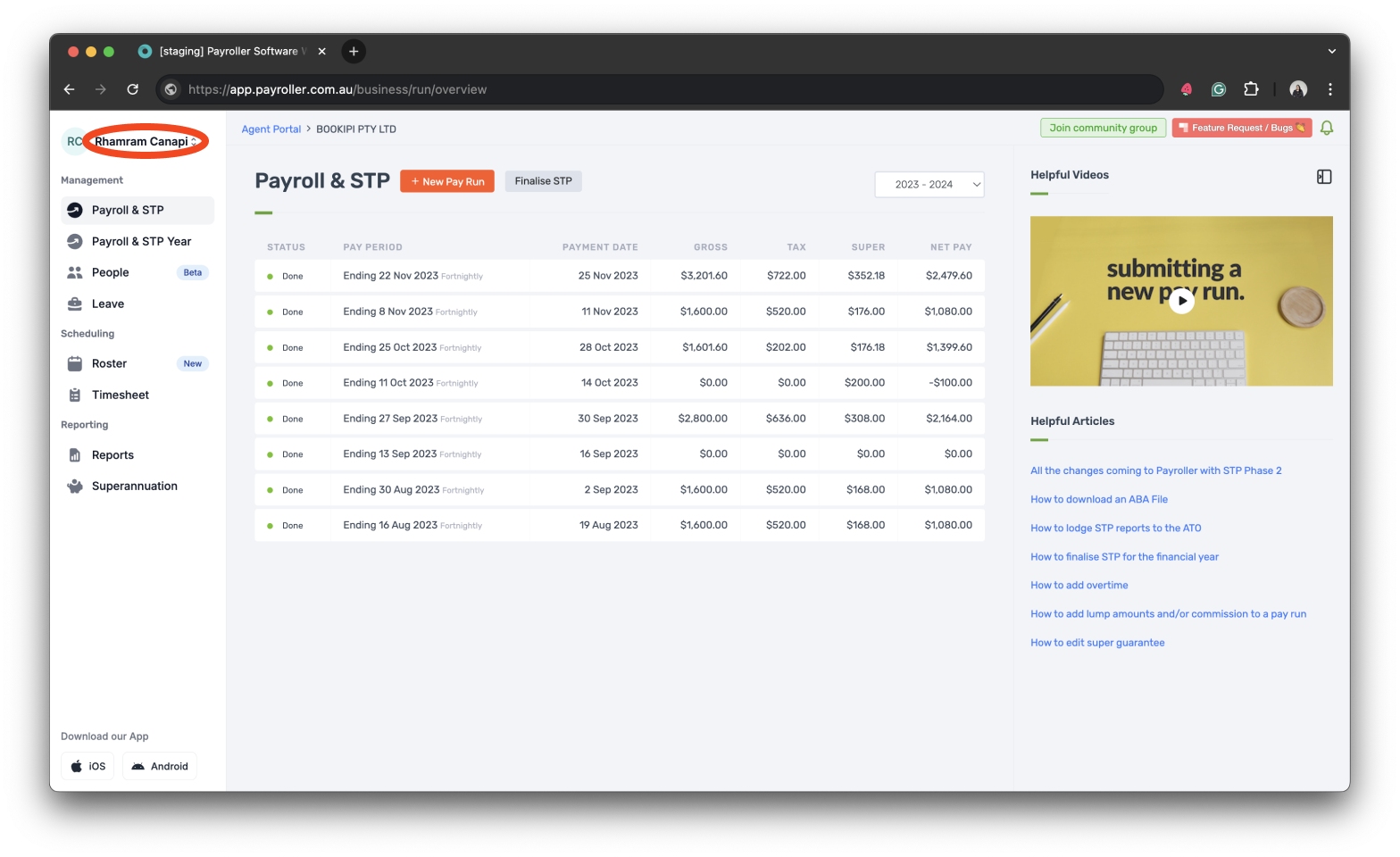
Step 3: Select ‘Settings‘.
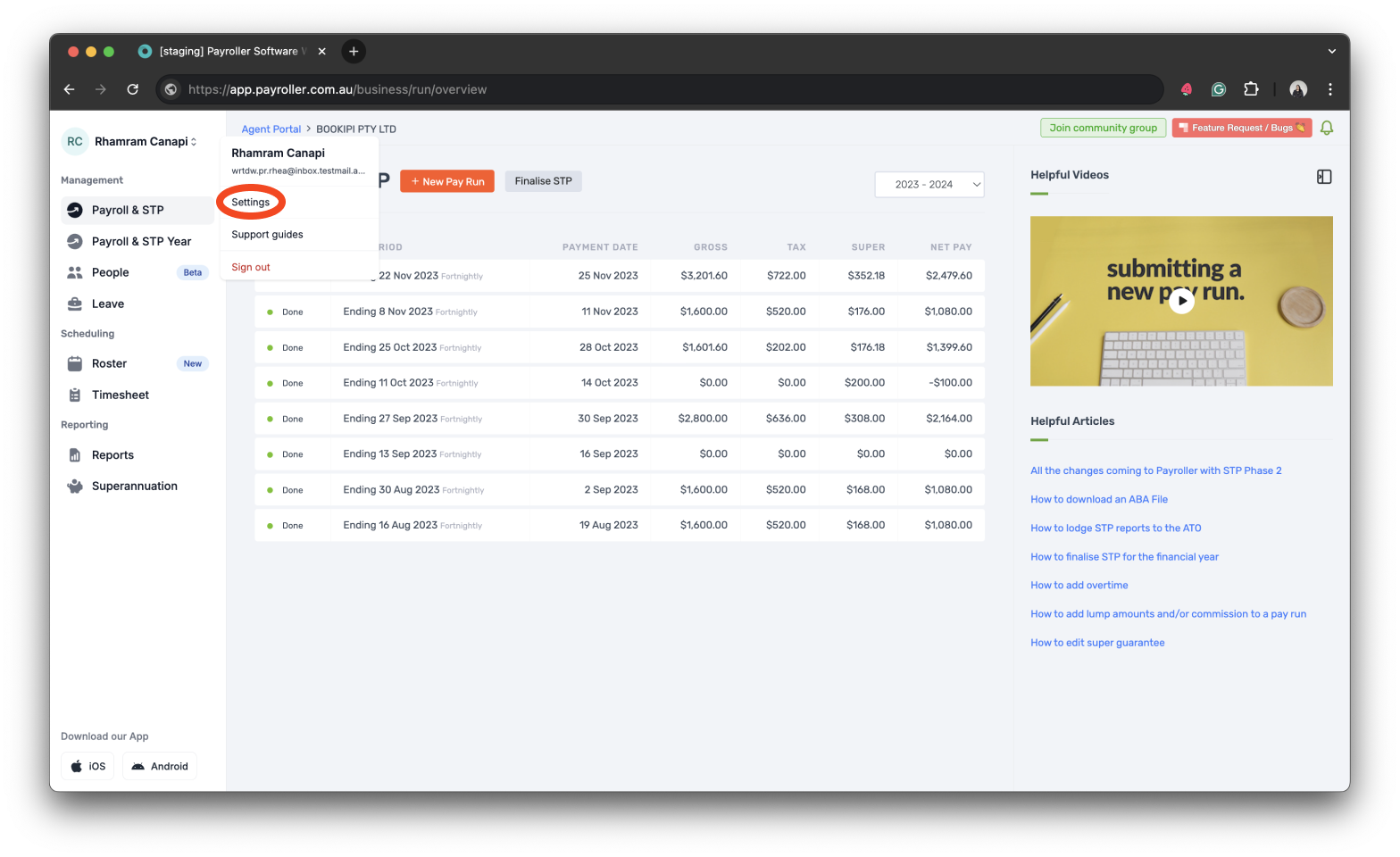
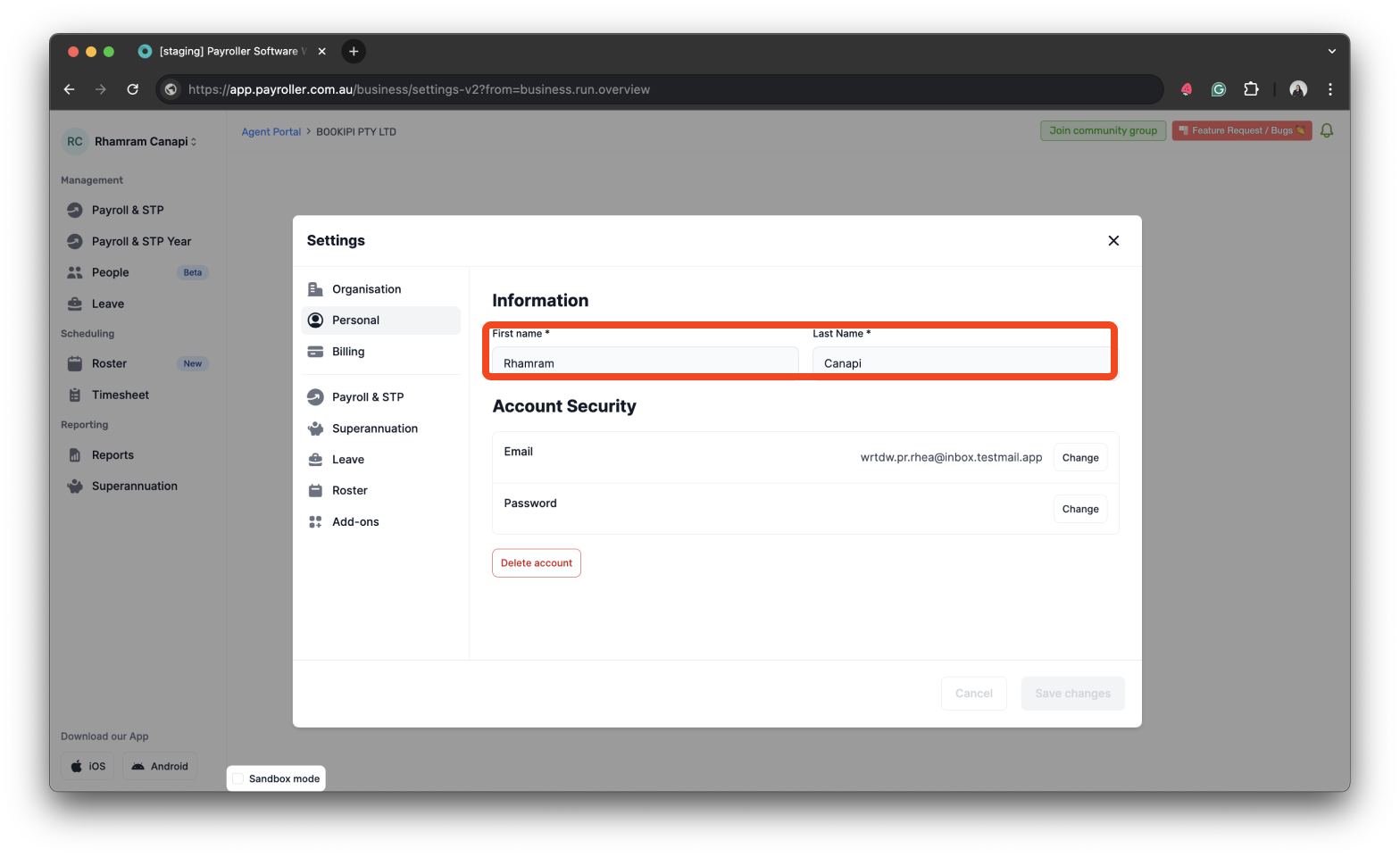
Step 4: Select ‘Personal’ from Settings.
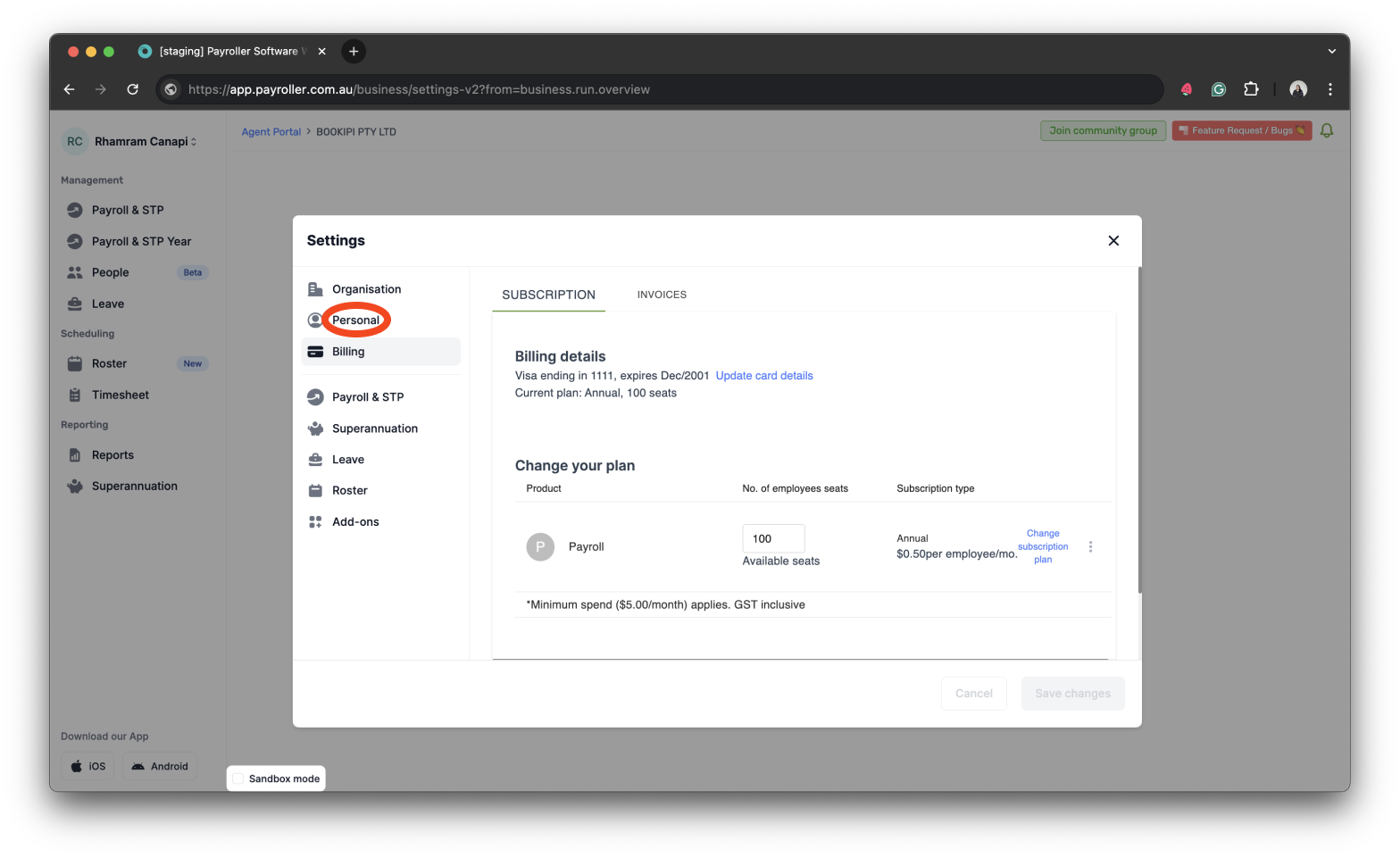
Step 5: Update the information by entering the ‘First Name’ and ‘Last Name’.
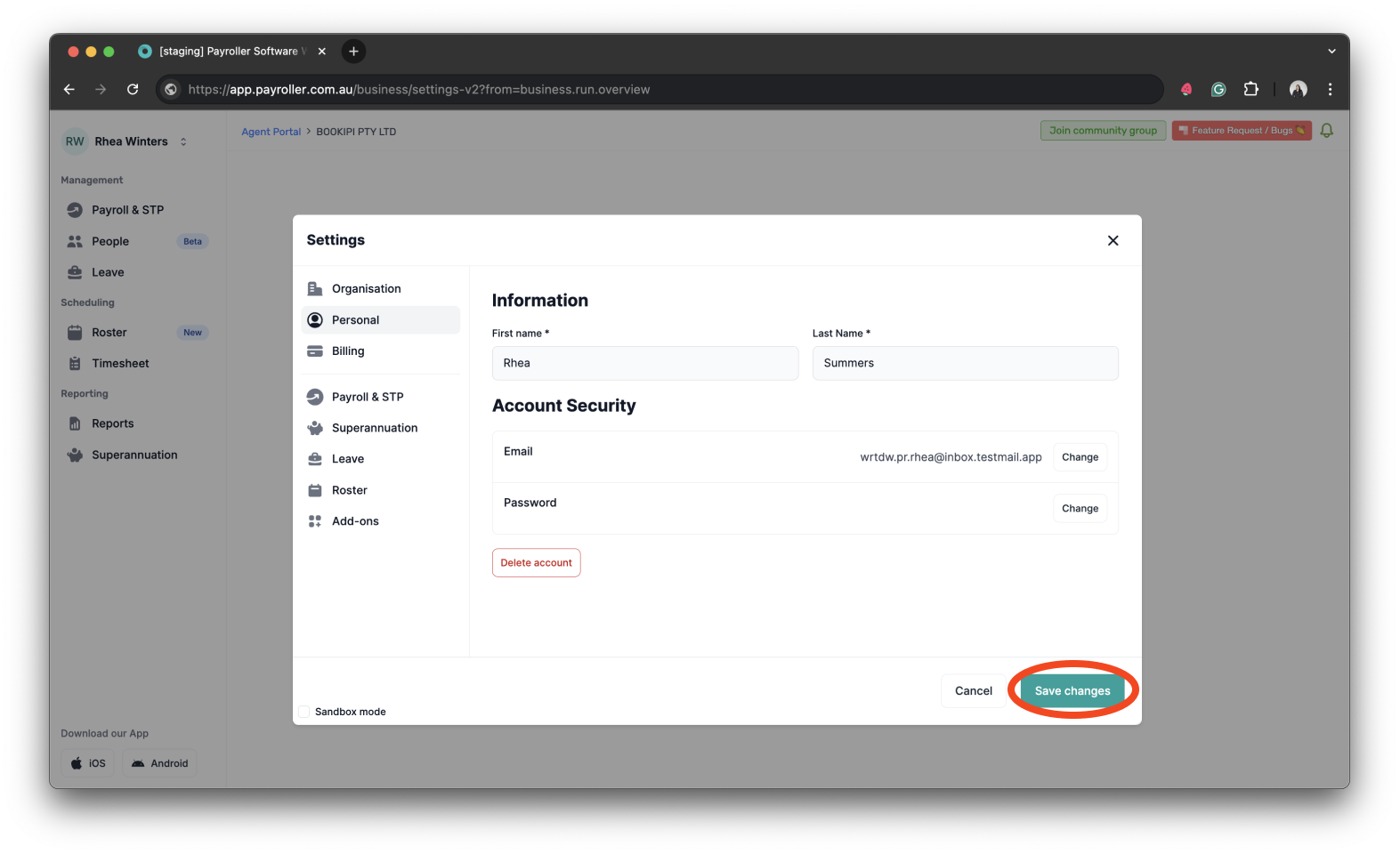
Step 6: Click the ‘Save changes’ button.
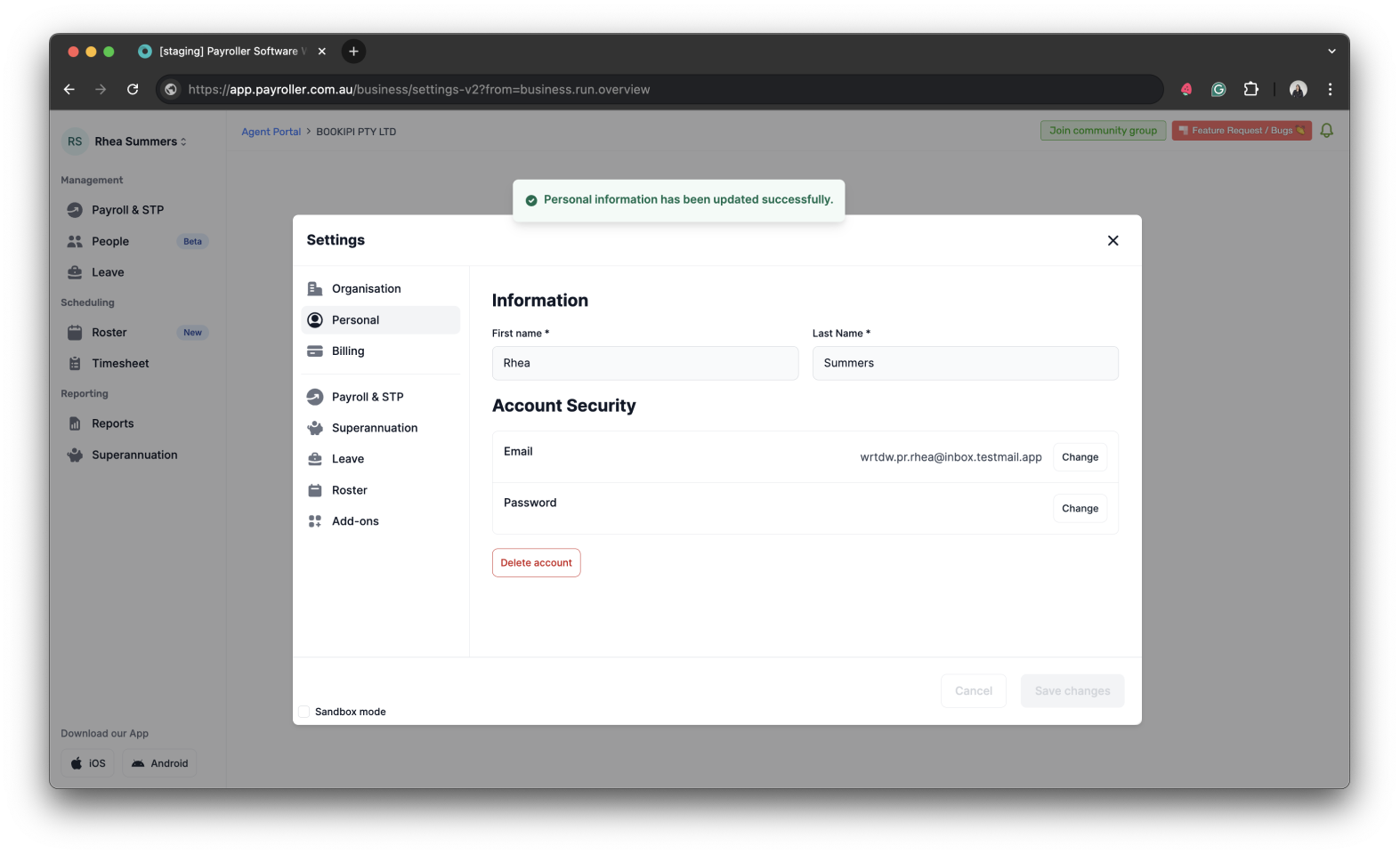
Your account holder’s name has now been changed.
Version 2: New Version
Step 1: From the Agent Home, select the card labeled as ‘You’.
Please note if you don’t have a card with ‘Agent account’ written on it you may have hidden your agent account.
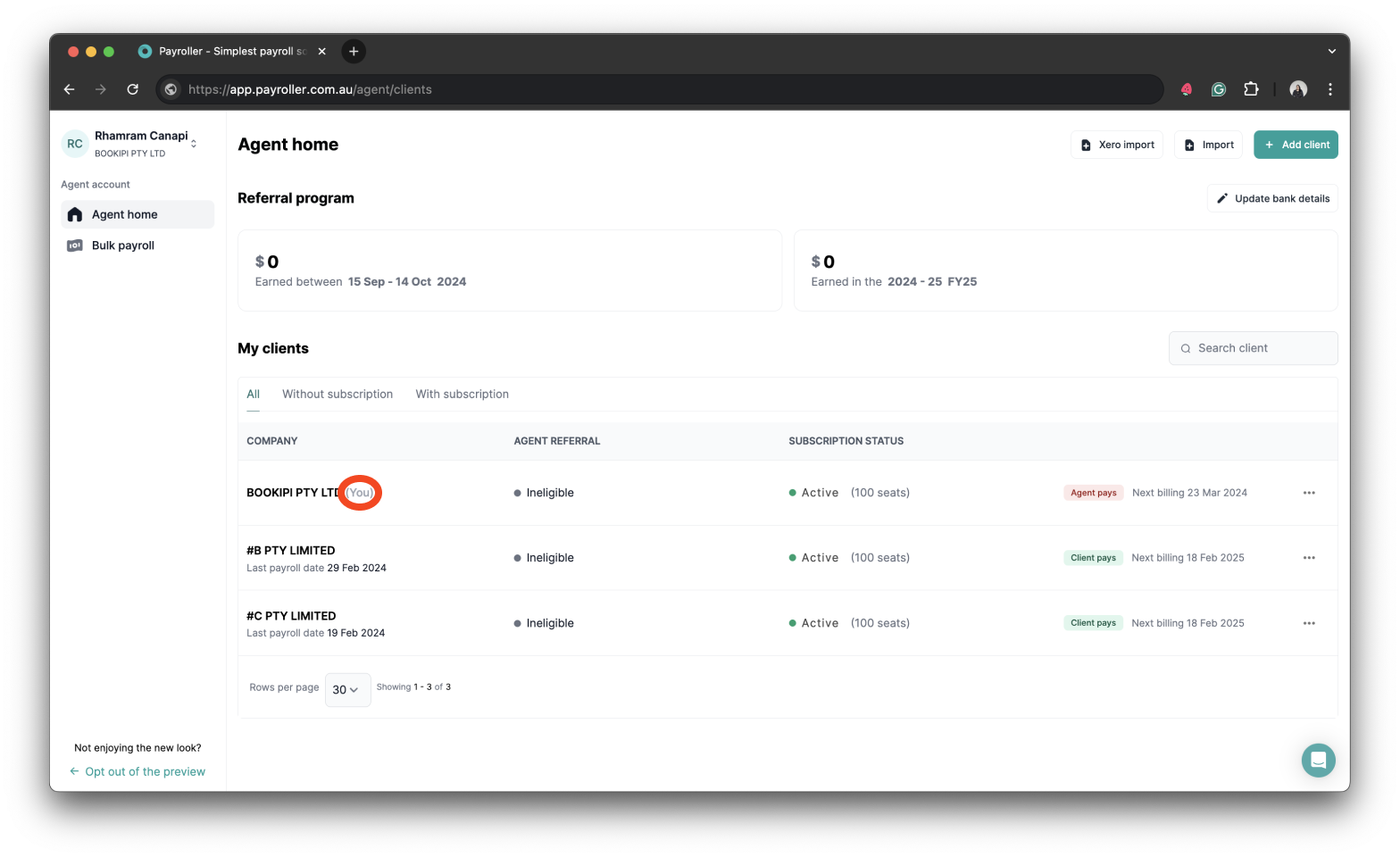
Step 2: Go to your Agent’s Profile located in the upper left corner of your agent portal.
Step 3: Select ‘Settings‘.
Step 4: Select ‘Personal’ from Settings.
Step 5: Update the information by entering the ‘First Name’ and ‘Last Name’.
Step 6: Click the ‘Save changes’ button.
Your account holder’s name has now been changed.
Discover more tutorials for using Payroller
Learn how to get the most out of using the dedicated Payroller agent portal. Read up on our collection of Agent user guides for accountants, bookkeepers, and tax agents.
You can help clients sign up for a Payroller subscription on their behalf so that they access all Payroller features across the web app and mobile app.
Accountants and bookkeepers can follow our simple user guides for managing clients’ Payroller subscriptions as Agents.