
Learn how to customise your employee’s status for your Payroller subscription
Learn how to customise your employee’s status for your Payroller subscription with our simple guide below.
There are two versions of Payroller
Version 1: Old Version
Customising your employee to the correct status is important so that you are billed correctly.
You will be prompted to upgrade your subscription based on the number of active employees you have and you will be charged based on the number of active employee seats you have.
Please note: If you do not wish to be charged for any employee seats that are no longer required, please make sure to deactivate your employee and also remove the employee seat from the billing section before the next automated payment.
You can adjust the status of your employees if they are not included in your pay runs or use any of the features in your paid plan.
There are three types of employee Status
-
Active employees are included in all features of the product and require a paid active employee seat in subscriptions.
-
Inactive employees will not be included in any pay runs, timesheets, or rosters and do not need a paid active employee seat in subscriptions. Employees who are terminated will automatically show this status.
-
Roster-only employees can access rostering and timesheet functions, but require a separate paid subscription for Timesheets and Rosters. However, standard subscription features, including pay runs, STP, SuperStream, and Xero integration, are unavailable unless the employee has an active Payroller subscription.
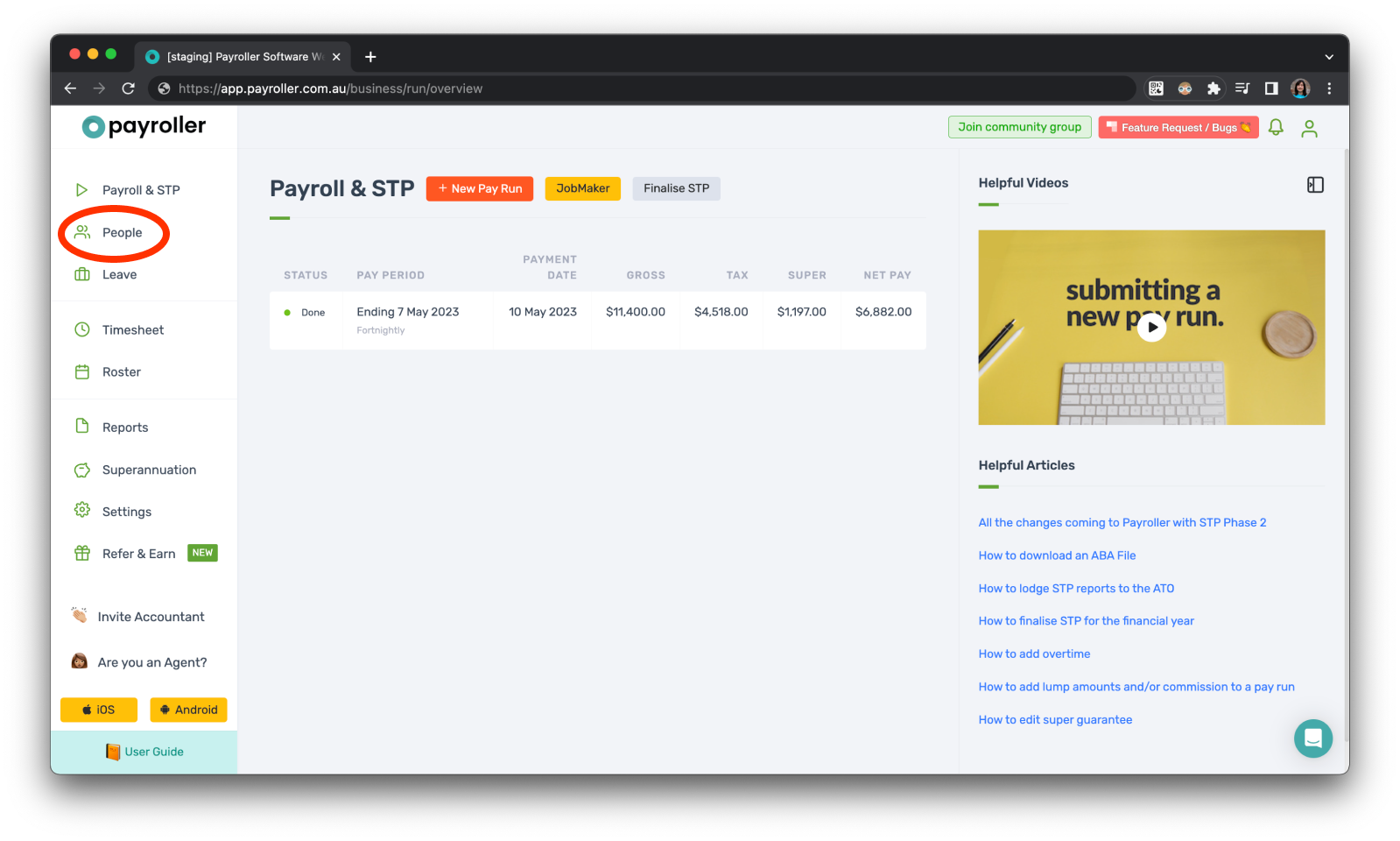
Step 1: To change the employee status, click on ‘People’.
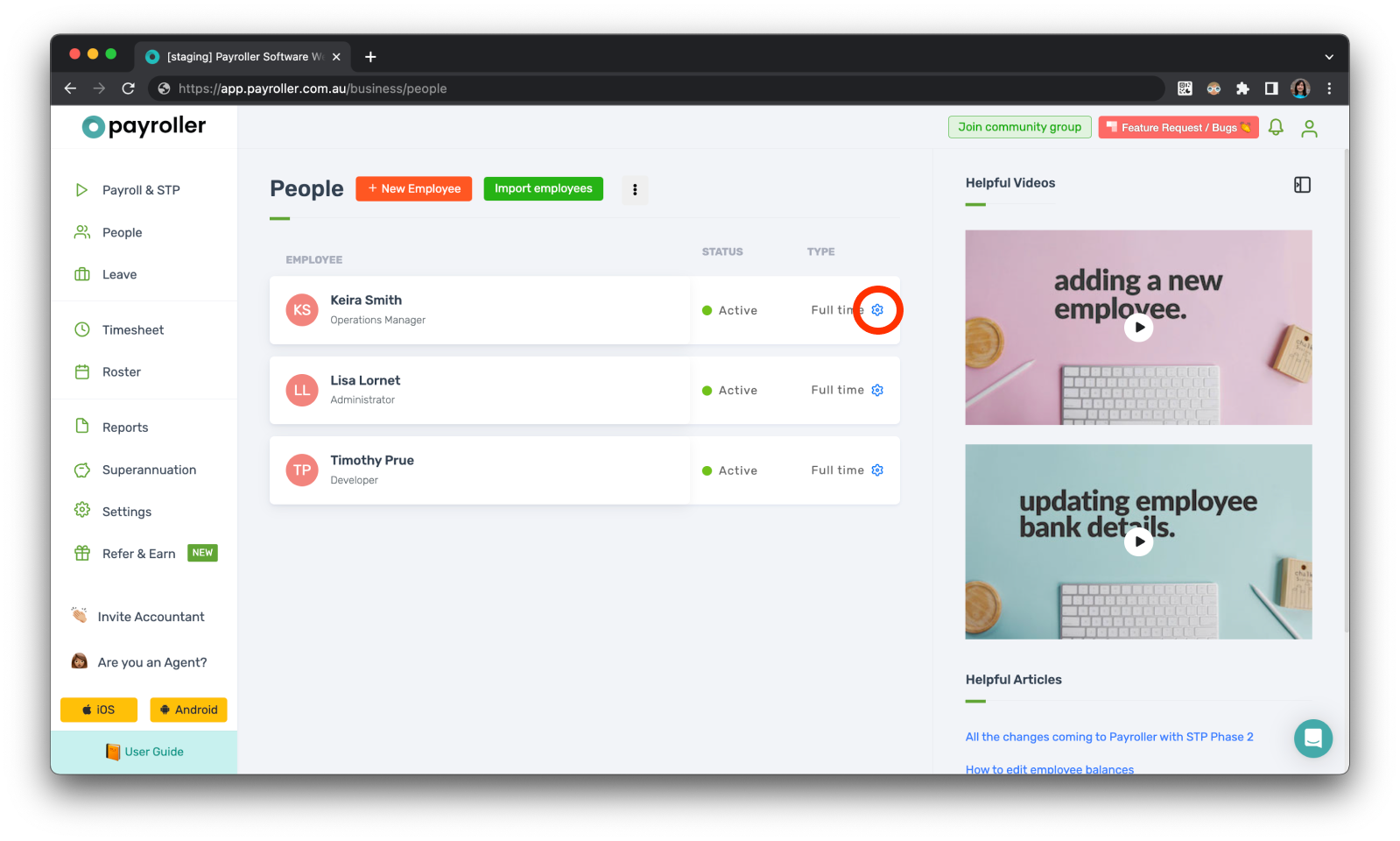
Step 2: Click on the ‘three dots’ to edit their settings.
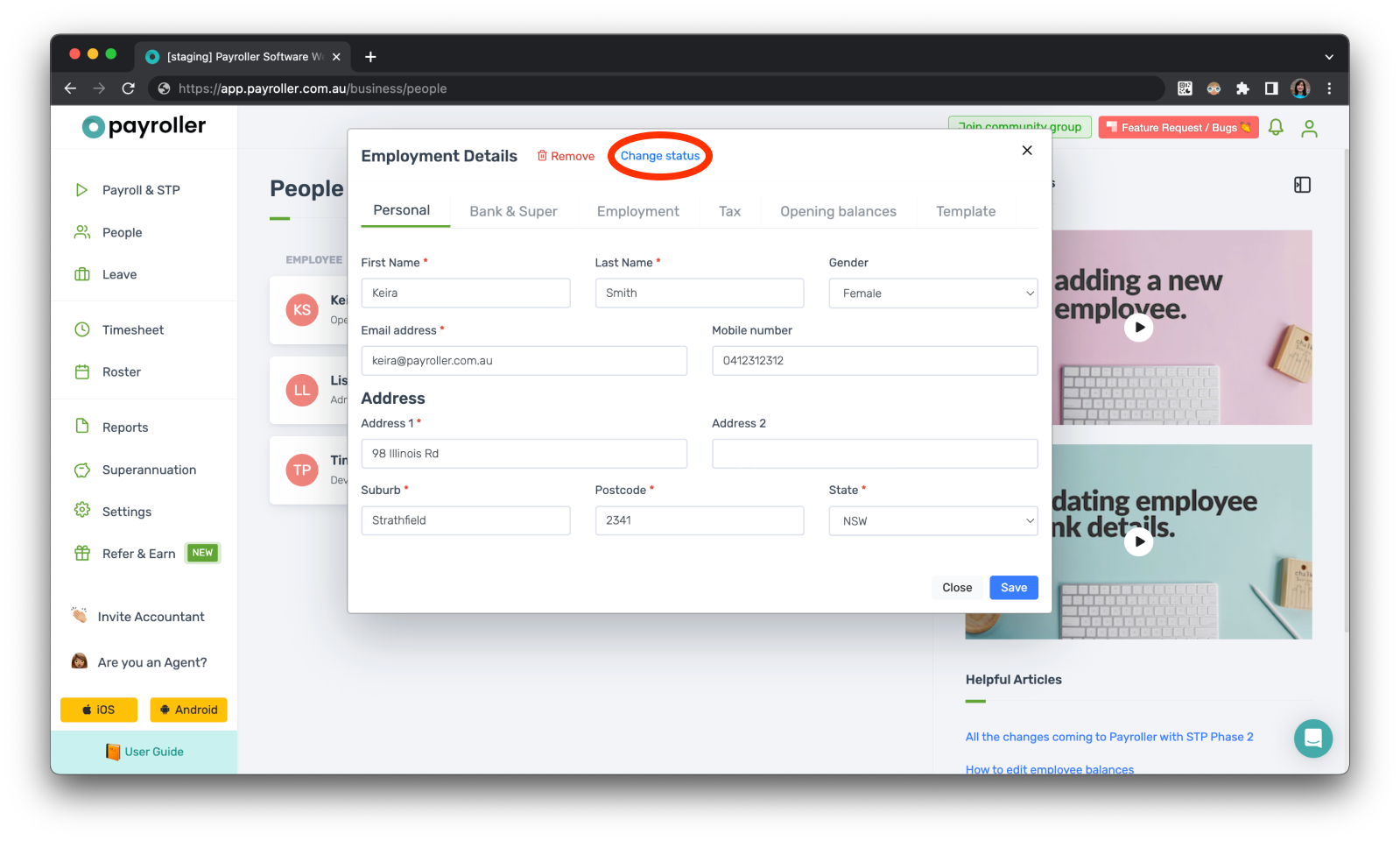
Step 3: Click on ‘Change Status’.
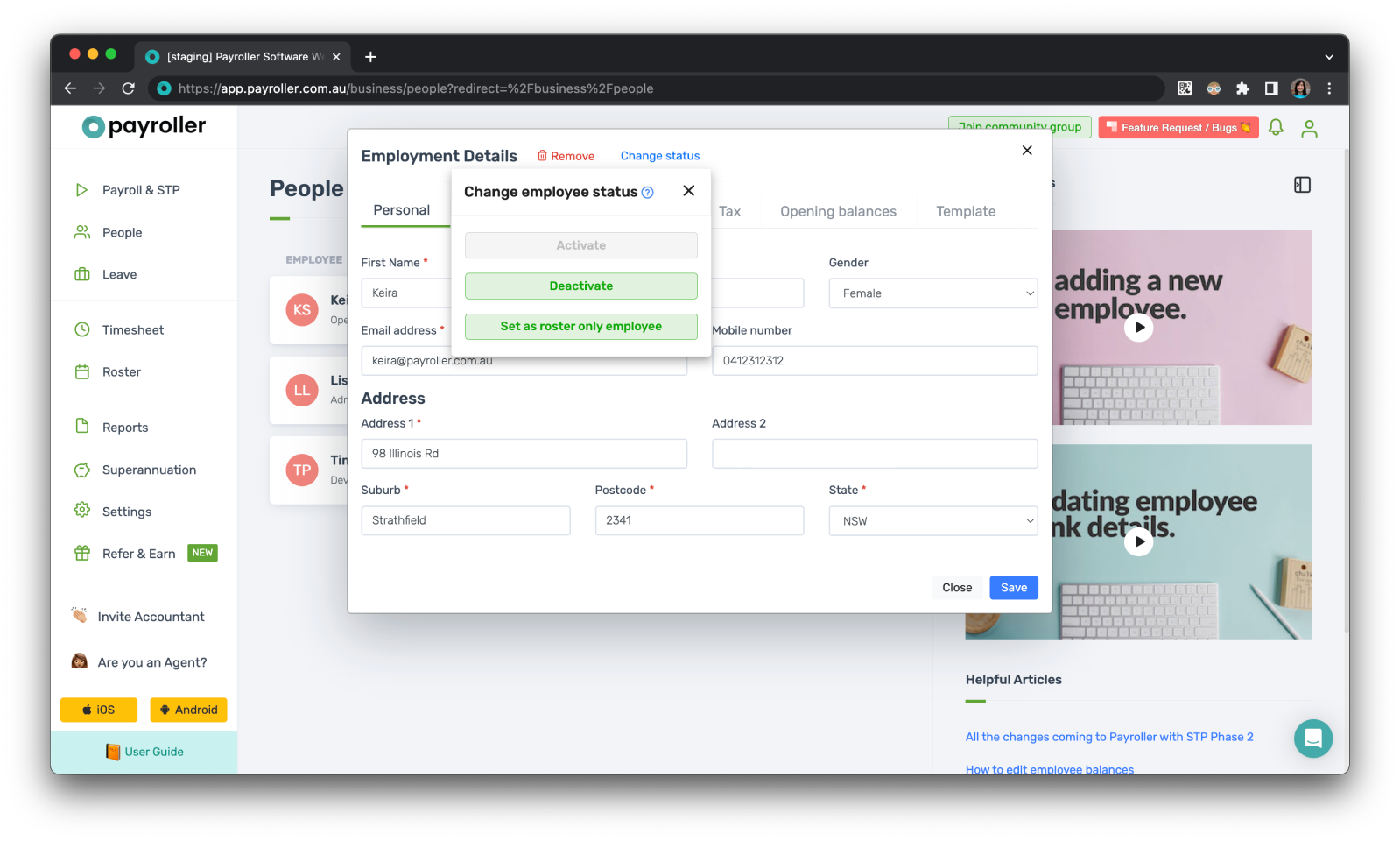
Step 4: From here you can select the status that you want for the employee.
When the status is grey that means that it is the currently selected status and cannot be changed again. If it is green it means that the status is available and can be selected.
You have now changed the status of your employee.
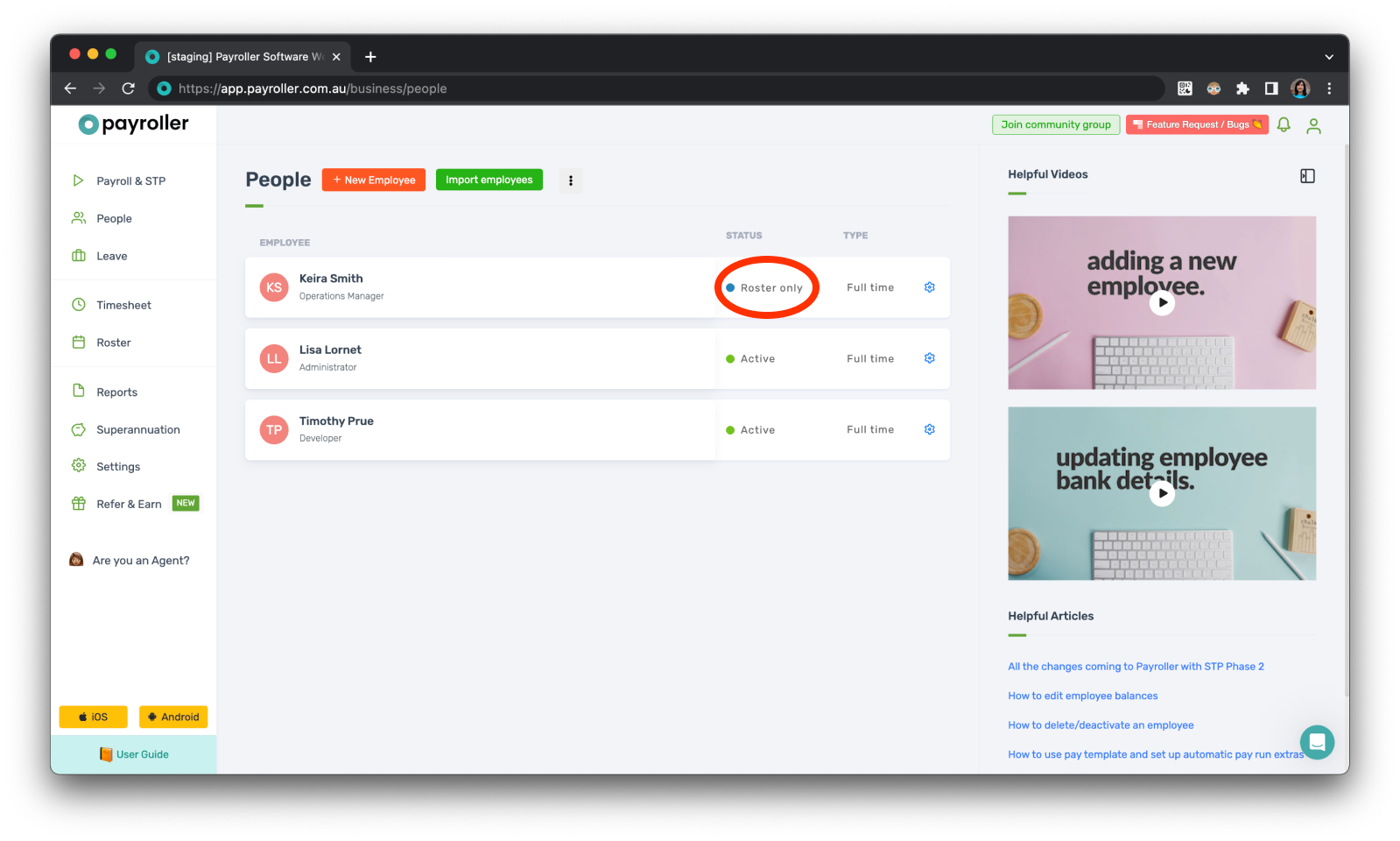
Version 2: New Version
Customising your employee to the correct status is important so that you are billed correctly.
You will be prompted to upgrade your subscription based on the number of active employees you have and you will be charged based on the number of active employee seats you have.
You can adjust the status of your employees if they are not included in your pay runs or use any of the features in your paid plan.
There are three types of employee Status
-
Active employees are included in all features of the product and require a paid active employee seat in subscriptions.
-
Inactive employees will not be included in any pay runs, timesheets, or rosters and do not need a paid active employee seat in subscriptions. Employees who are terminated will automatically show this status.
-
Roster-only employees will not be included in any pay runs but they can be added to rosters and timesheets and do not need a paid active employee seat in subscriptions
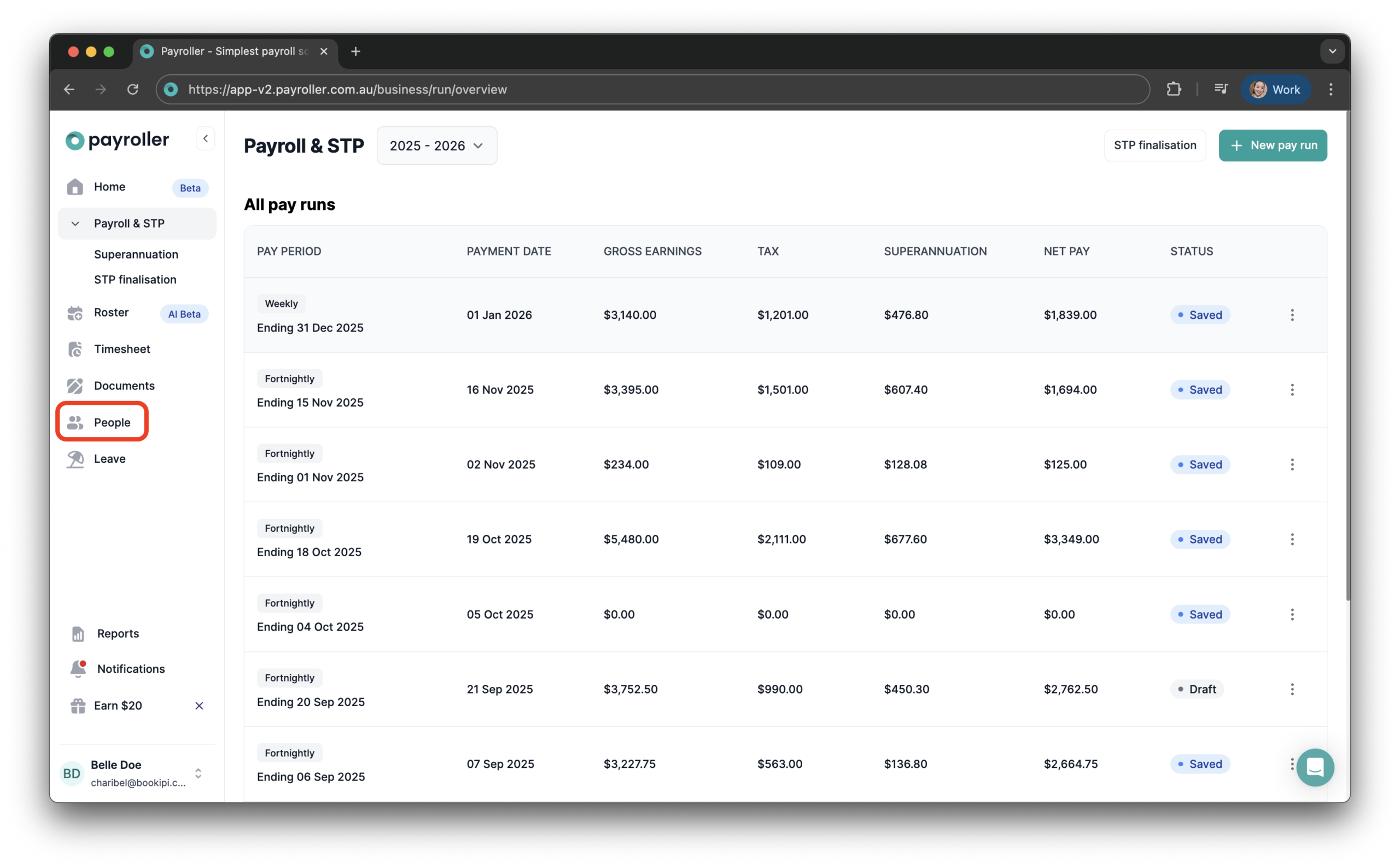
Step 1: To change the employee status, go to the ‘People’ section in the left-hand column.
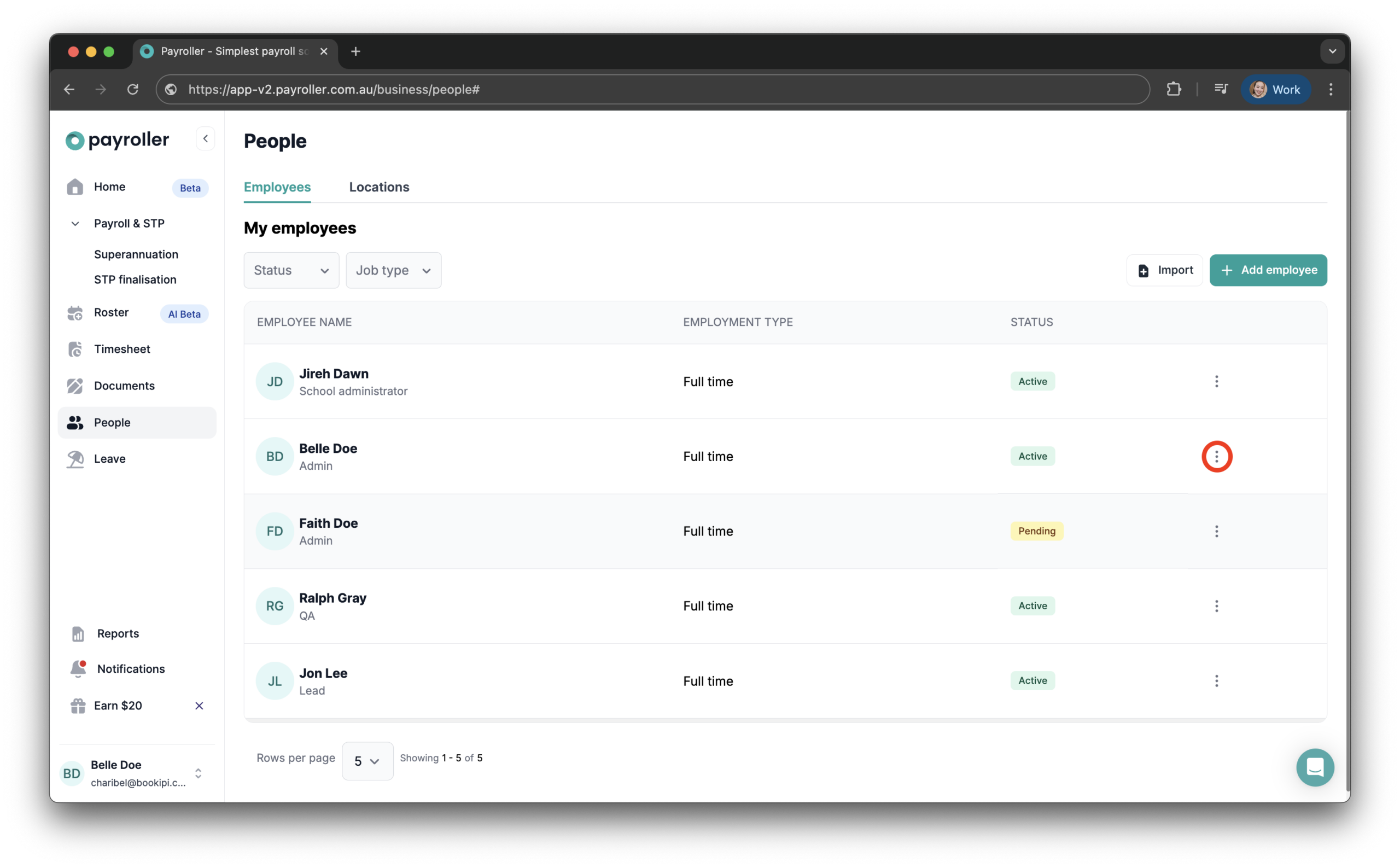
Step 2: Click the three dots next to the relevant employee’s profile.
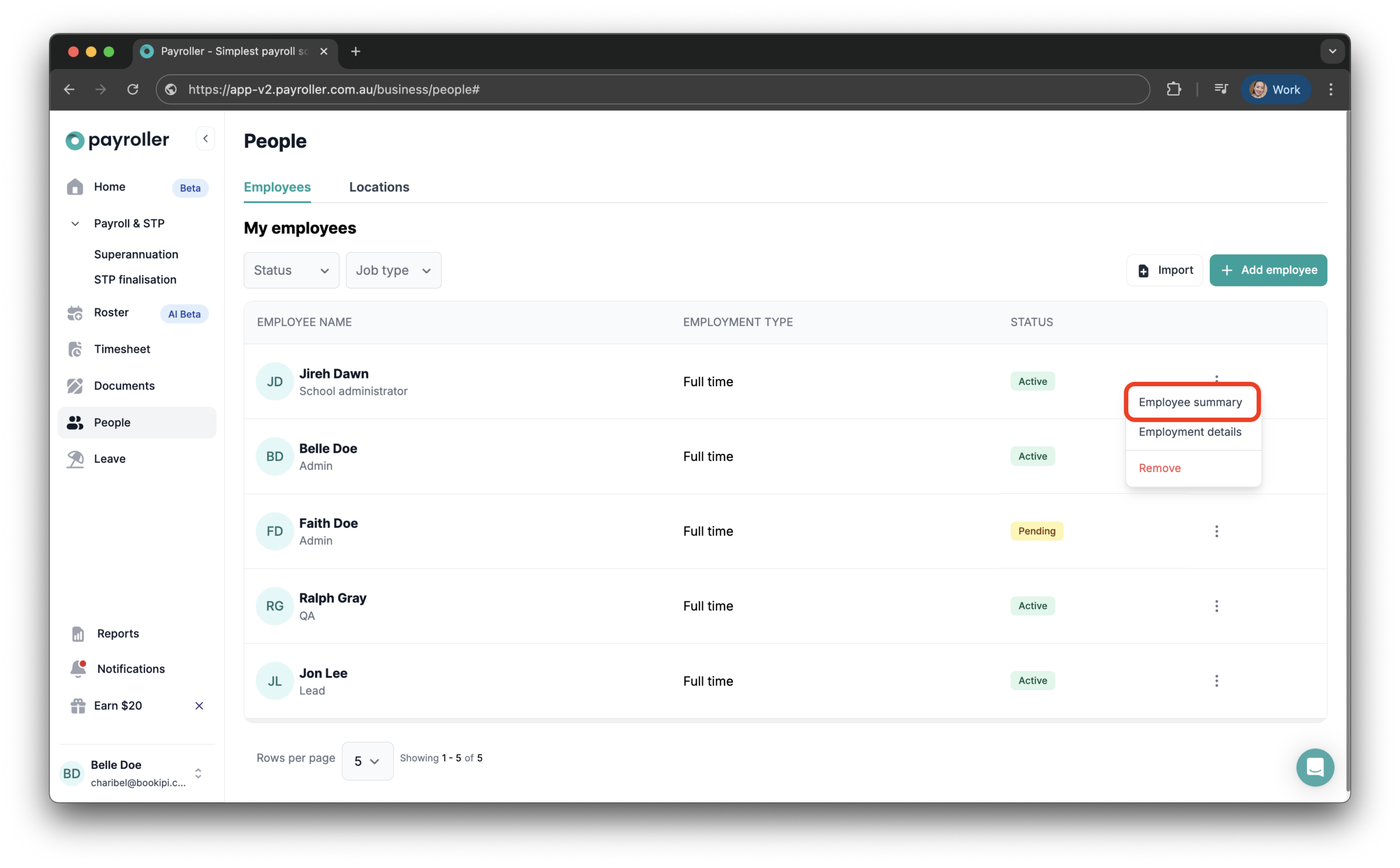
Step 3: Select ‘Employment summary’.
Step 4: Click on ‘Change Status’.
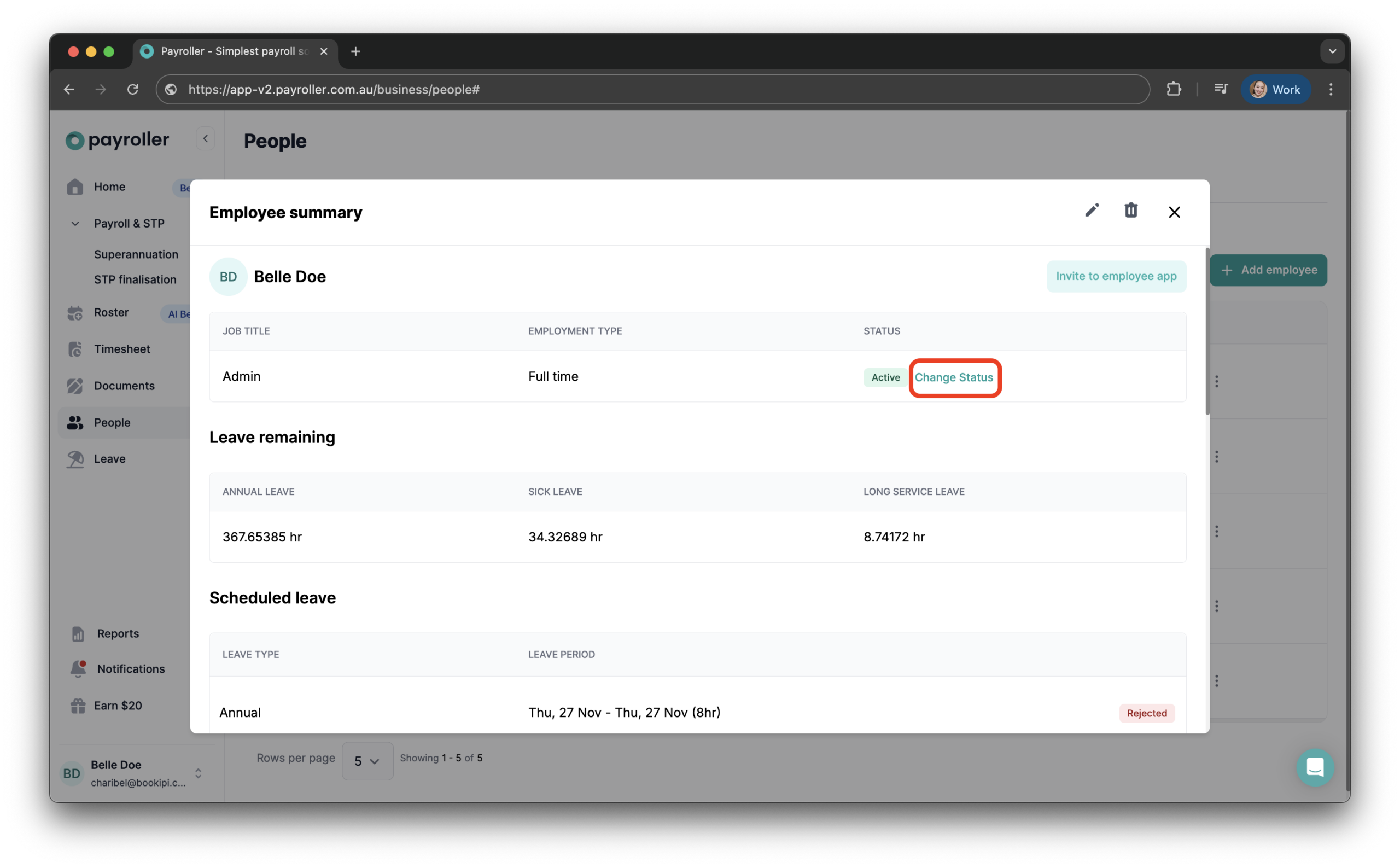
Step 5: Choose the desired status for the employee.
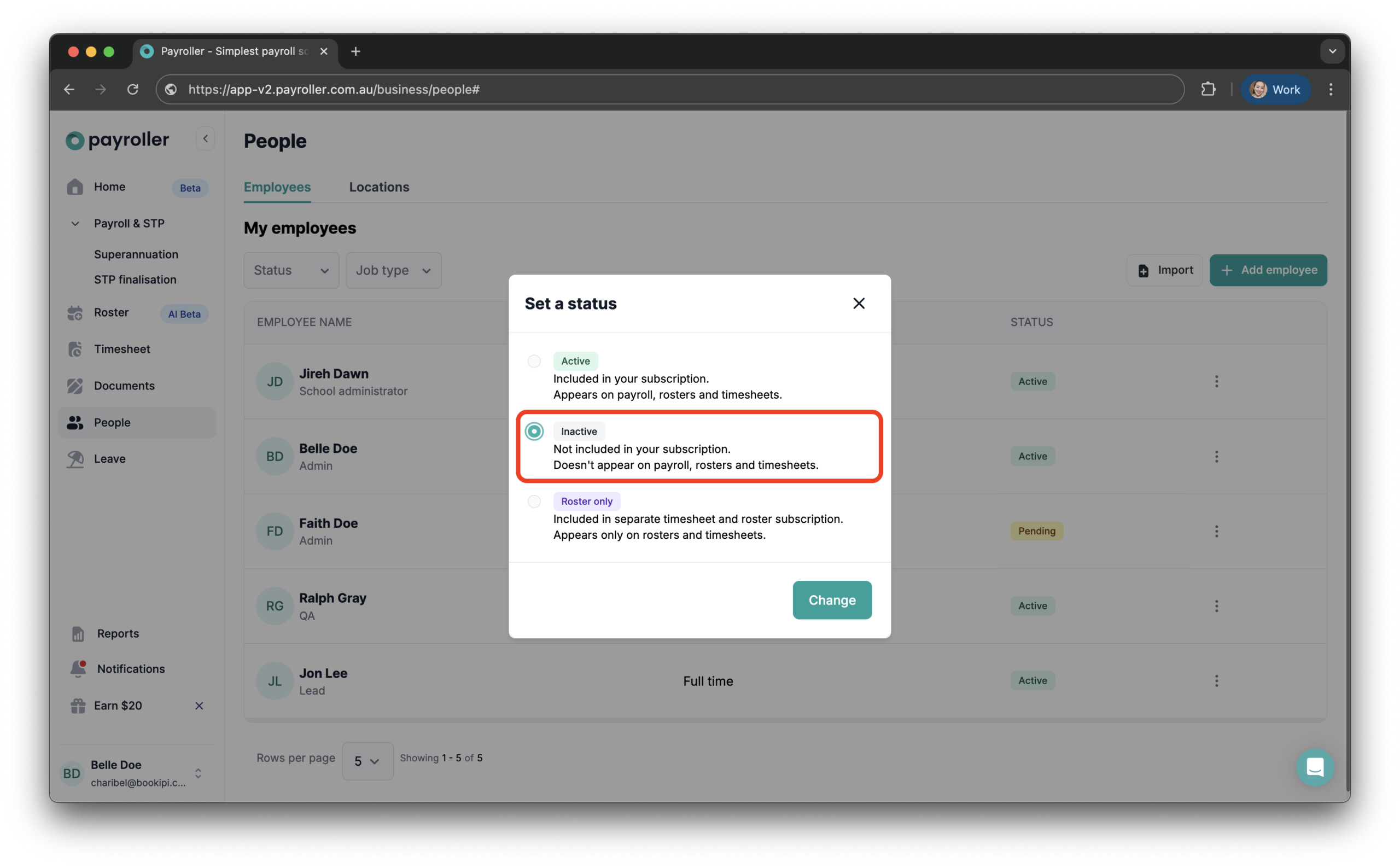
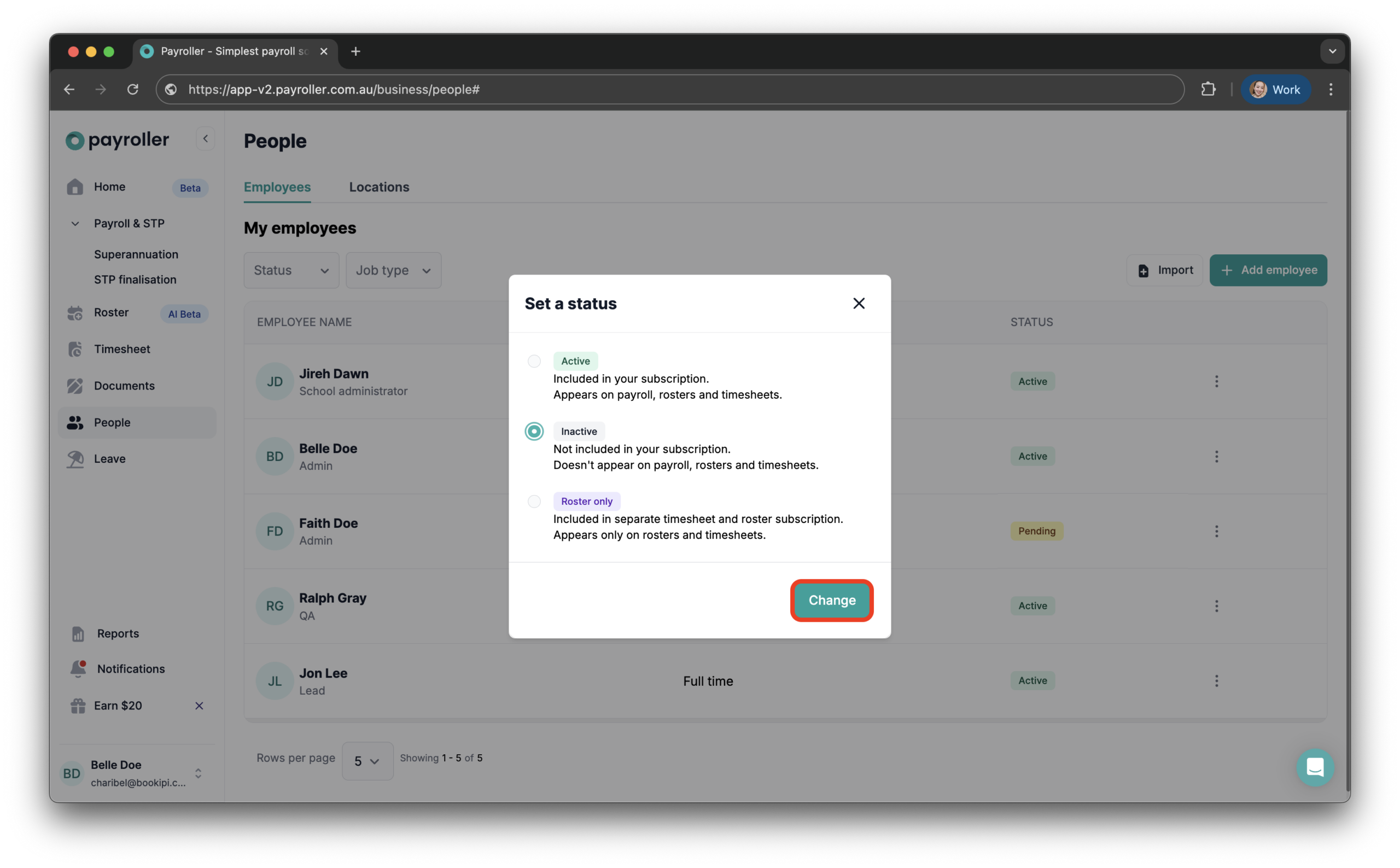
Step 6: Click ‘Change’ to save the updated status.
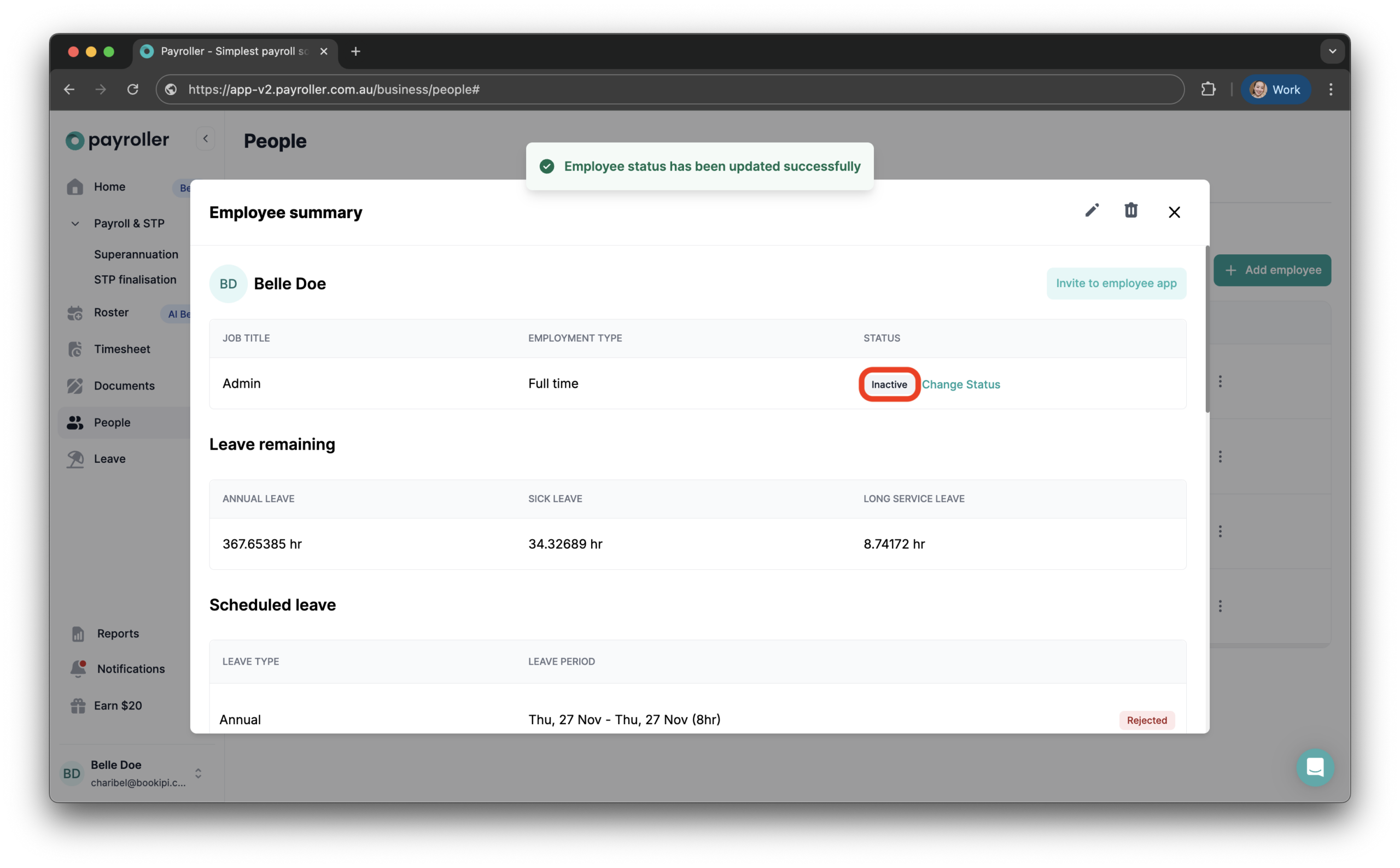
The status of your employee has now been successfully updated.
Learn how to add new employees, edit employee details, delete employees, and recover deleted employees in Payroller.
Discover more tutorials & get the most out of using Payroller
Get started with creating your first pay run with our simple guides.
Signing up for a Payroller subscription gives you access to all Payroller features on the web app and mobile app.
Read our Subscription FAQs.